
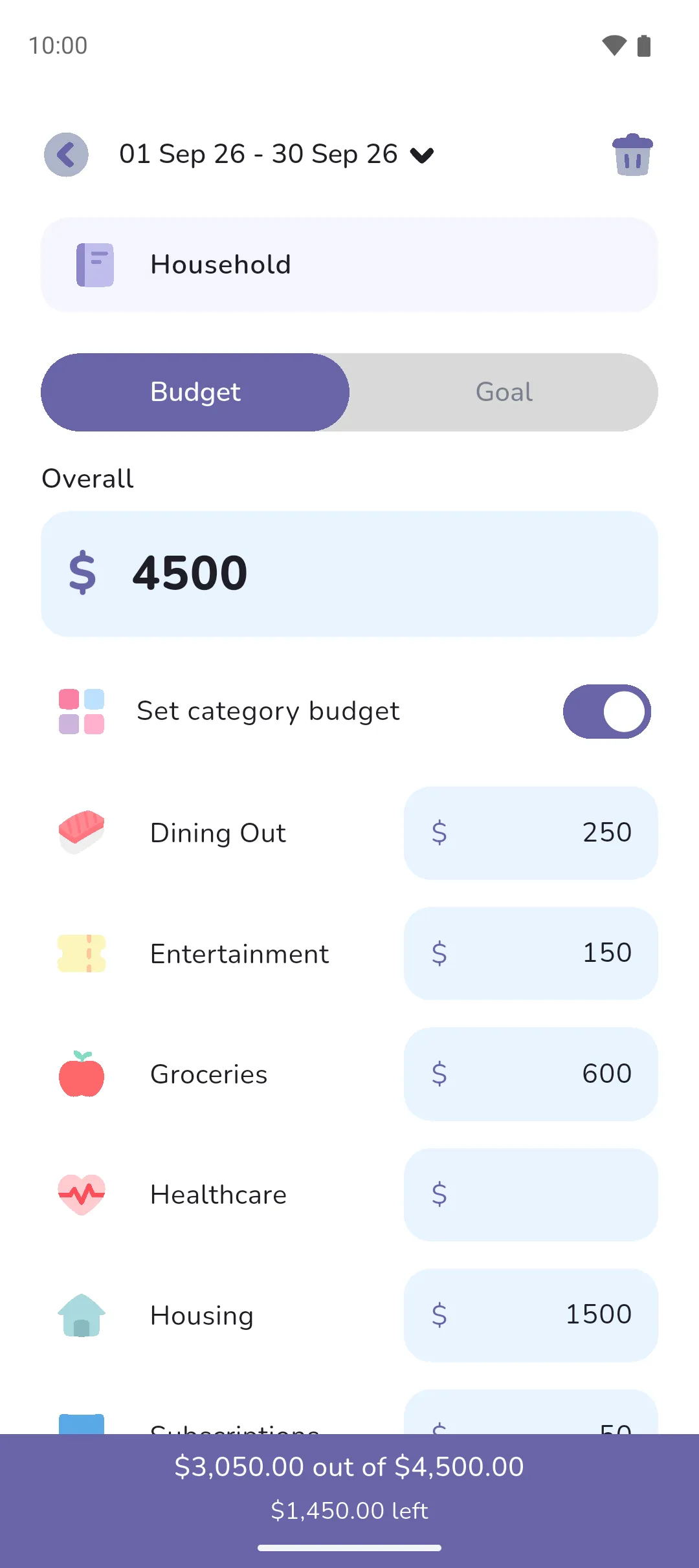
A budget is a limit on expenses for one period, overall or per category, and a goal is an income target for the same period. Set once, either applies to every period after it until you change it, and the home screen shows what's left.
Where to find it: in two places.
- Tap the Book icon (top right) → Financial goals → Budget/Goal.
- Tap the budget card on the home screen. It opens the same screen.
 Book icon (top right) → Financial goals → Budget/Goal.
The date range at the top is the period you're editing. Tap it to pick another. The Budget tab is for expenses, the Goal tab for income.
Set a budget
- On the Budget tab, enter the Overall amount: the total you plan to spend in the period, across every category that counts toward it.
- To cap a category on its own, turn on Set category budget and enter an amount beside it. A banner at the bottom totals the category amounts against the overall and shows what's left, or how far over they are.
- Tap Save.
Set category budget appears once you've typed an overall amount. The overall can then be cleared again, leaving the category budgets on their own.
The category amounts don't have to add up to the overall, and the app saves them whether they come under it or over. Expenses in a category with no budget of its own still count against the overall.
Set a goal
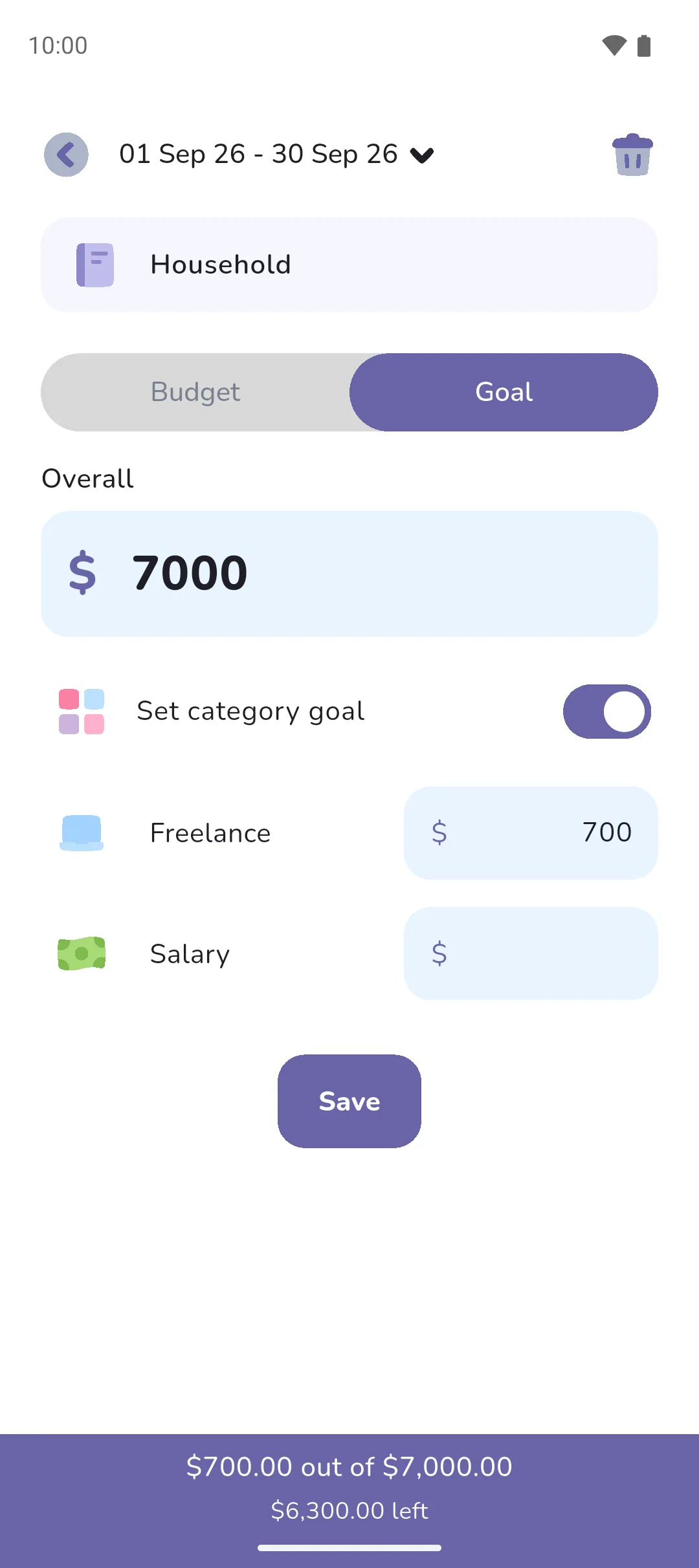
A goal is what you aim to earn in the period, not a limit on what you spend. It suits income that changes from period to period, such as shift work or freelance hours. A category goal tracks each source on its own.
On the Goal tab, enter the Overall amount you're aiming for. Turn on Set category goal for an amount beside each income category. Tap Save. Pro is required to save a goal.
Change or delete one
Open the same screen, change the amounts and tap Save. The change applies from the period you're viewing onward. Earlier periods keep what they had, and so does any later period you set on its own. To clear the period's budget, or goal, and every category amount with it, tap the Delete icon in the top right and confirm. That clears it from this period on as well.
 Delete icon in the top right and confirm. That clears it from this period on as well.
What the home screen shows
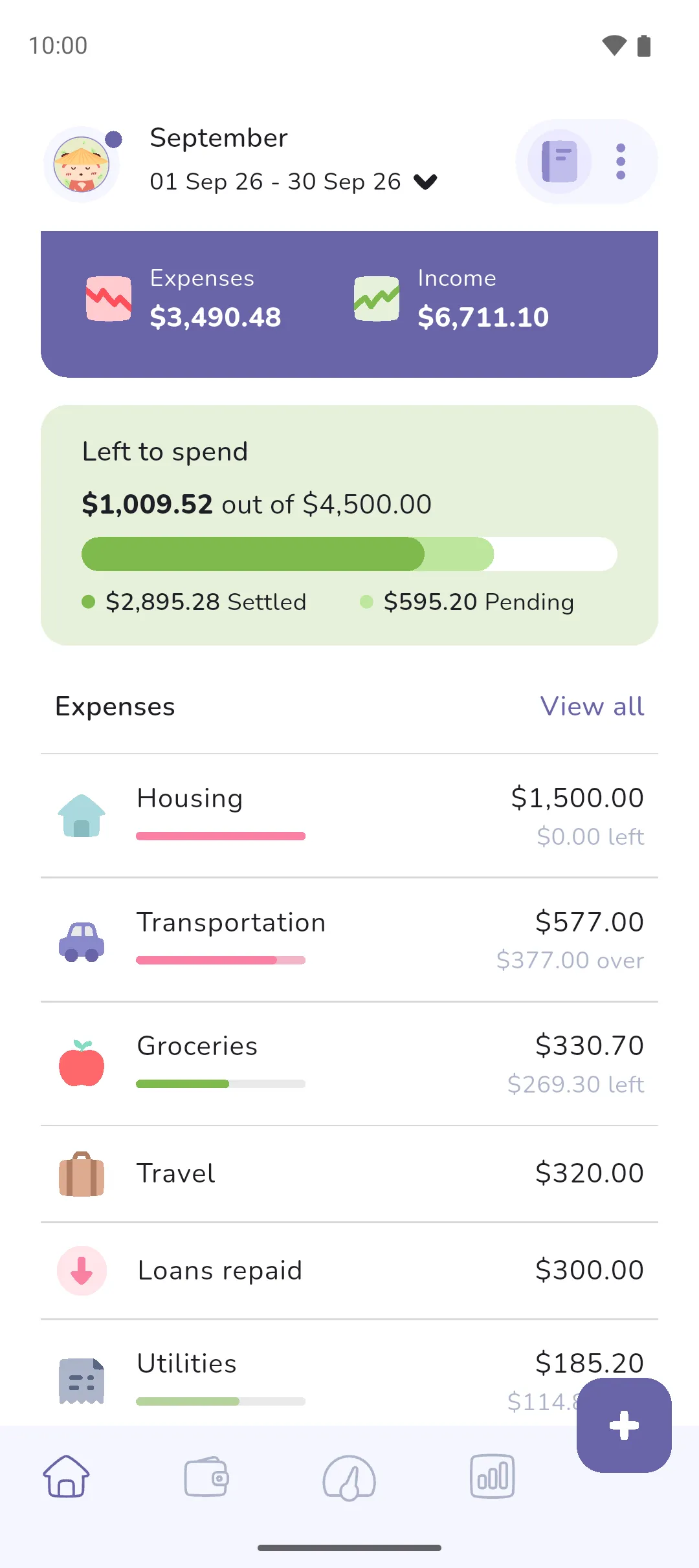
With a budget set, the home screen shows a card with Left to spend and the amount, out of the overall. It reads Over budget once you pass it. Each category with its own budget shows what's left, or how far over, beside its name. A goal shows as Left to goal until it's reached, then Goal Achieved. The goal card is hidden until you set Left to goal to Time marker or No time marker under Customise home, and Pro is required for it. Left to spend can be hidden there too: see Home screen.
The Budget widget
The Budget widget on your phone's home screen shows the Left to spend card for the active book. It updates each time you open or leave the app. Tap it to open the app. Pro is required for the widget.
- Left to spend is the overall budget minus every expense in the period, settled and pending alike. A bill you've entered for a date in the future is already spoken for, as long as it falls in the period.
- A category with Include in overall budget unticked doesn't count against the overall budget, and the budget screen marks it Excluded. Its own category budget still works.
- A transfer into a loan tracker counts against your budget under Loans repaid. Untick Include in overall budget on that category to keep loan payments out.
- A budget carries forward. Set it once and every later period uses it until you change it in a later period.
- Changing the book's schedule, between monthly, fortnightly and weekly, deletes every budget and goal in the book.
At the end of a period, the summary can roll what's left of a budget, or what went over, into the next period: see End of period summary.
See also: Categories, Home screen, End of period summary, Books.