
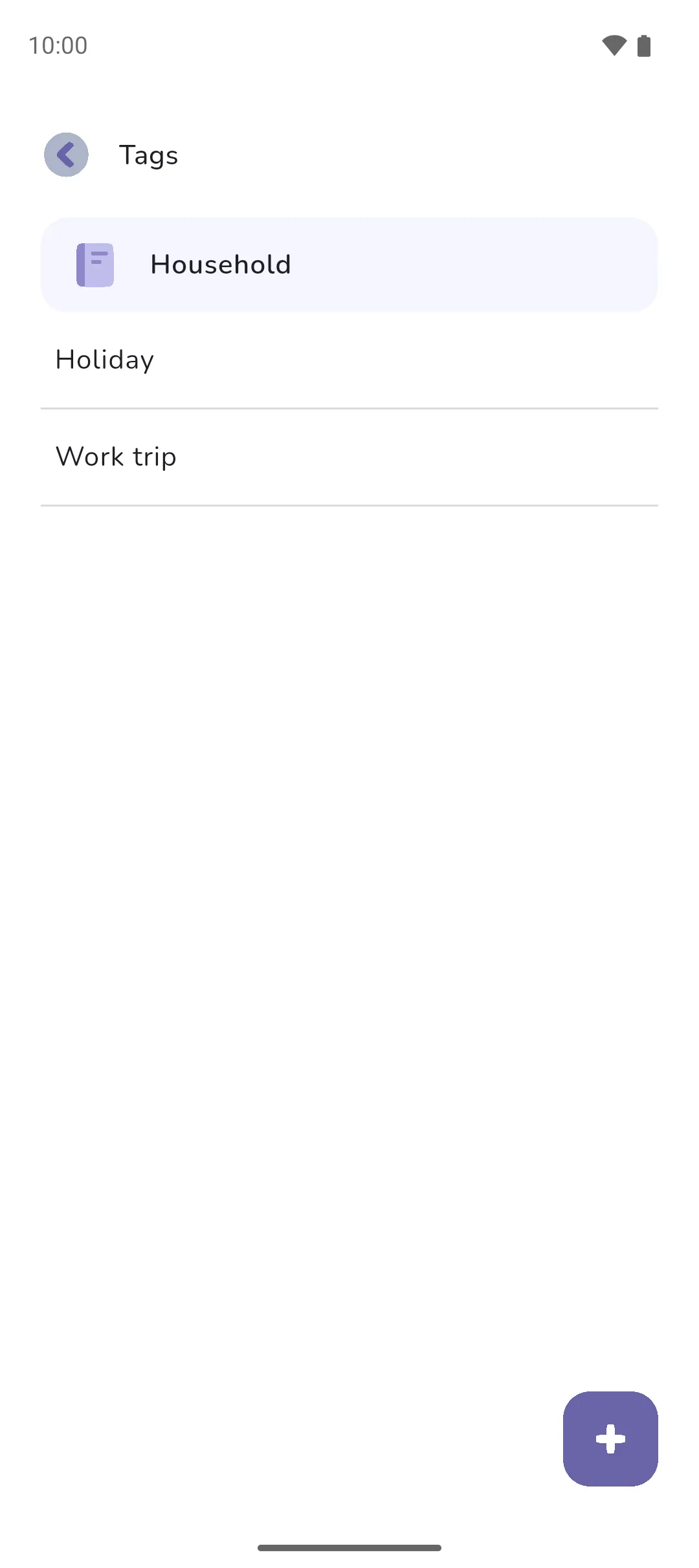
A tag is a label you put on a transaction, whatever its account or category, to group expenses that cut across both: a holiday, a house move, a work trip. Tags answer the question a category can't: what did that trip cost, across everything you spent on it?
Where to find it: in three places.
- The book's tag list: tap the Book icon (top right) → Organisation → Tags.
- On a transaction: the Tags icon at the top of the Add transaction screen.
- In search: the Tags field on Search, opened from the Search icon at the top of the Timeline tab, the Accounts tab, the calendar and any transaction list.
 Book icon (top right) → Organisation → Tags.
 Tags icon at the top of the Add transaction screen.
 Search icon at the top of the Timeline tab, the Accounts tab, the calendar and any transaction list.
Create a tag
- On the Tags list, tap the Plus button. The screen is titled Add tag.
- Enter a Name.
- Tap Save.
 Plus button. The screen is titled Add tag.
While adding a transaction, the Plus button on Select tags creates one on the spot.
Tag a transaction
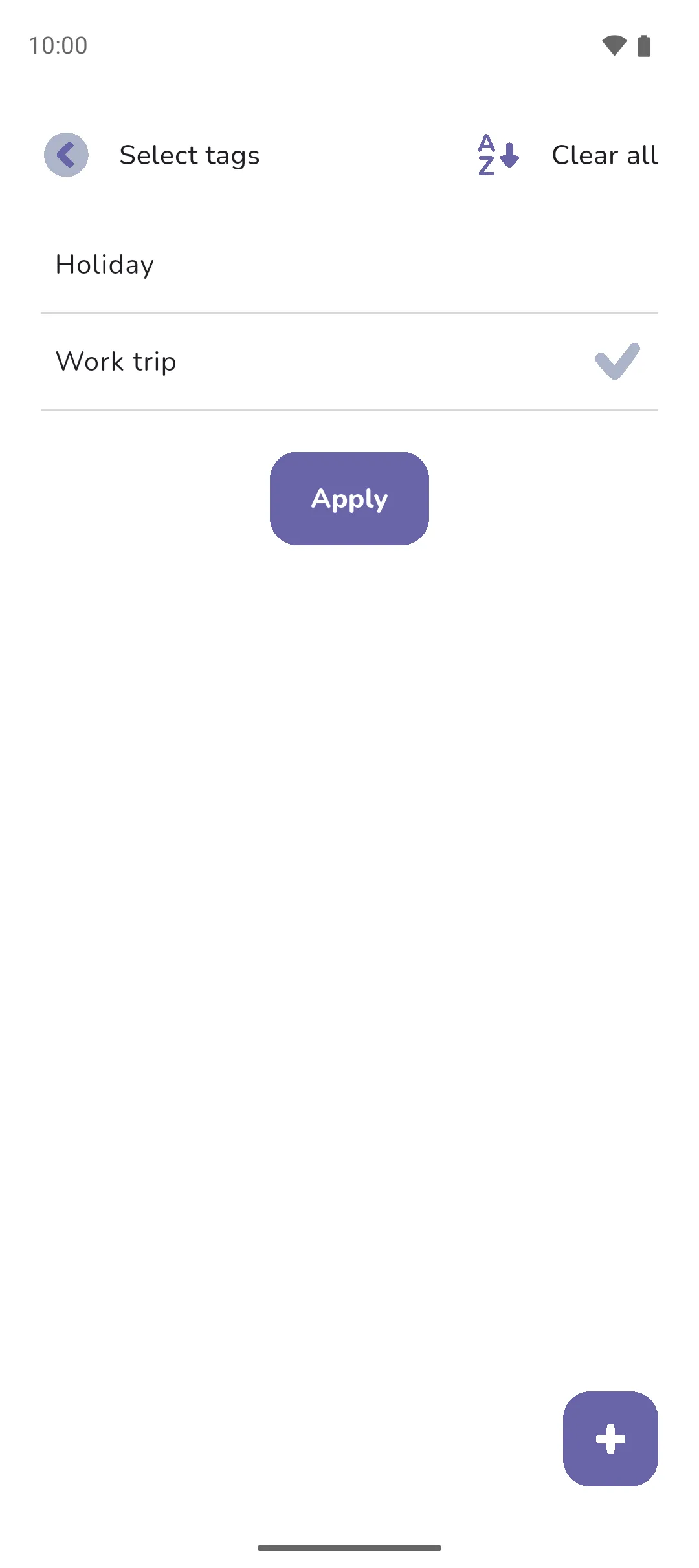
- On Add transaction, tap the Tags icon. Select tags lists the book's tags.
- Tap each tag you want. A tick marks it. Tap again to remove it, or Clear all to start over.
- Tap Apply. The tag names show under the amount.
- Save the transaction as usual.
The list sorts alphabetically, or by the tags you used most recently, with the toggle at the top. A recurring transaction supports tags the same way, and every occurrence has them.
Edit or delete a tag
Tap the tag on the Tags list to open Edit tag. Change the Name and tap Save. To delete it, tap the Delete icon in the top right and confirm. Deleting a tag removes it from every transaction and recurring series that had it. The transactions themselves stay.
 Delete icon in the top right and confirm. Deleting a tag removes it from every transaction and recurring series that had it. The transactions themselves stay.
Find everything with a tag
- On Search, tap the Tags field. Any means no tag filter.
- Tick one or more tags and tap Apply. The field shows how many you picked.
- Move Date from back to the first transaction with the tag, or earlier. The dates start a month apart, ending today.
- Tap Search.
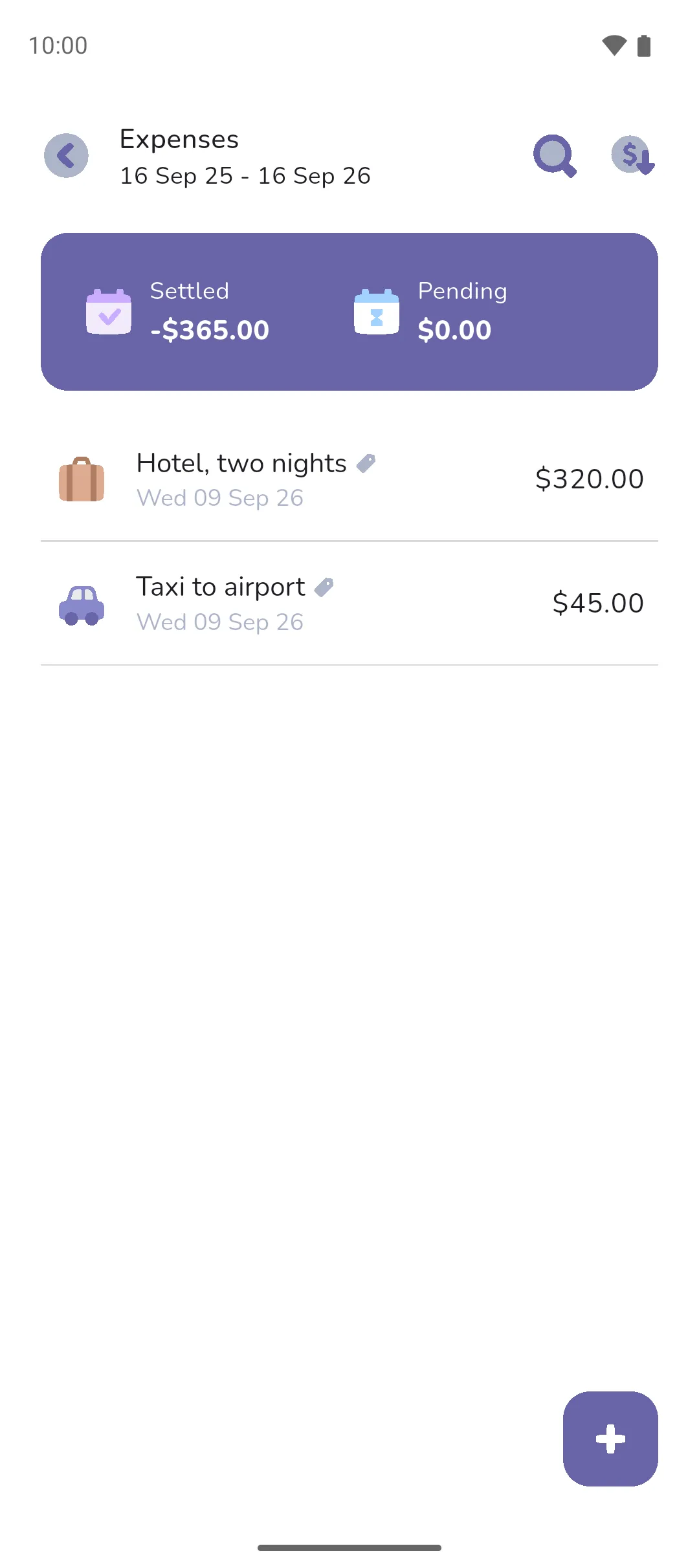
The results open with their totals at the top, settled and pending separately, so a tag tells you what it added up to. With more than one tag, a transaction must have all of them to show. The other fields on Search narrow the results further, by date, amount, category or note.
Where tags show
- In every transaction list, a tagged transaction shows the Tags icon beside its name.
- On the transaction's own screen, the tag names are found under the amount.
- In the CSV export, one column per tag in the book, after the time. Each row names the tags its transaction has.
- Pro is required for tags. Tags already on your transactions stay there, hidden until Pro is back.
- Tags belong to a book. A second book has its own list, and a transaction can only have its book's tags.
- Tags go on income and expenses, recurring ones included. Transfers and tracker entries don't support tags.
- Two tags in a book can't share a name.
- With Pro Sync: a transaction from the bank supports tags. See Linked accounts.
See also: Adding a transaction, Search, Recurring transactions and transfers, and Books for the CSV export.