
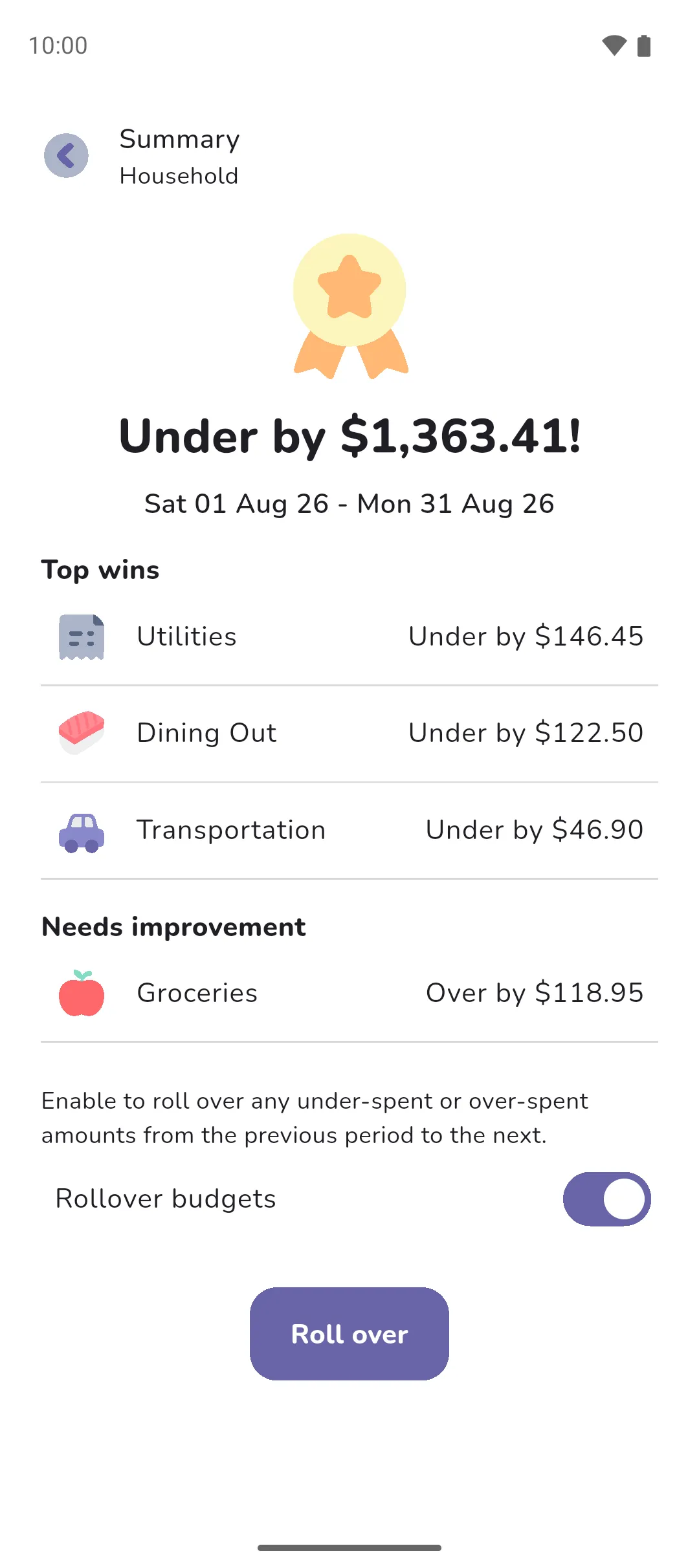
The end of period summary shows how a period went against your overall and category budgets, and offers to roll any underspend or overspend into the next period's budget.
Where to find it: the Home tab, which takes you to the summary once the previous period ends. To open a previous period's summary again, tap the title at the top of the home screen, pick the period, then View summary.
A summary exists only for a period with a budget, overall or per category. The screen's title is Summary.
Read the summary
- The headline says how the period went against your overall budget: Under by an amount, Over by an amount, or You were on Target!. Without an overall budget it reads Here's how you went. The period's dates are found under the headline.
- Top wins lists up to three category budgets you came in under, largest margin first. Needs improvement lists up to three you went over, furthest over first.
- Tap Let's go to close the summary. This dismisses the Your last period summary card. Leaving with the back arrow instead keeps the card.
Roll over a budget
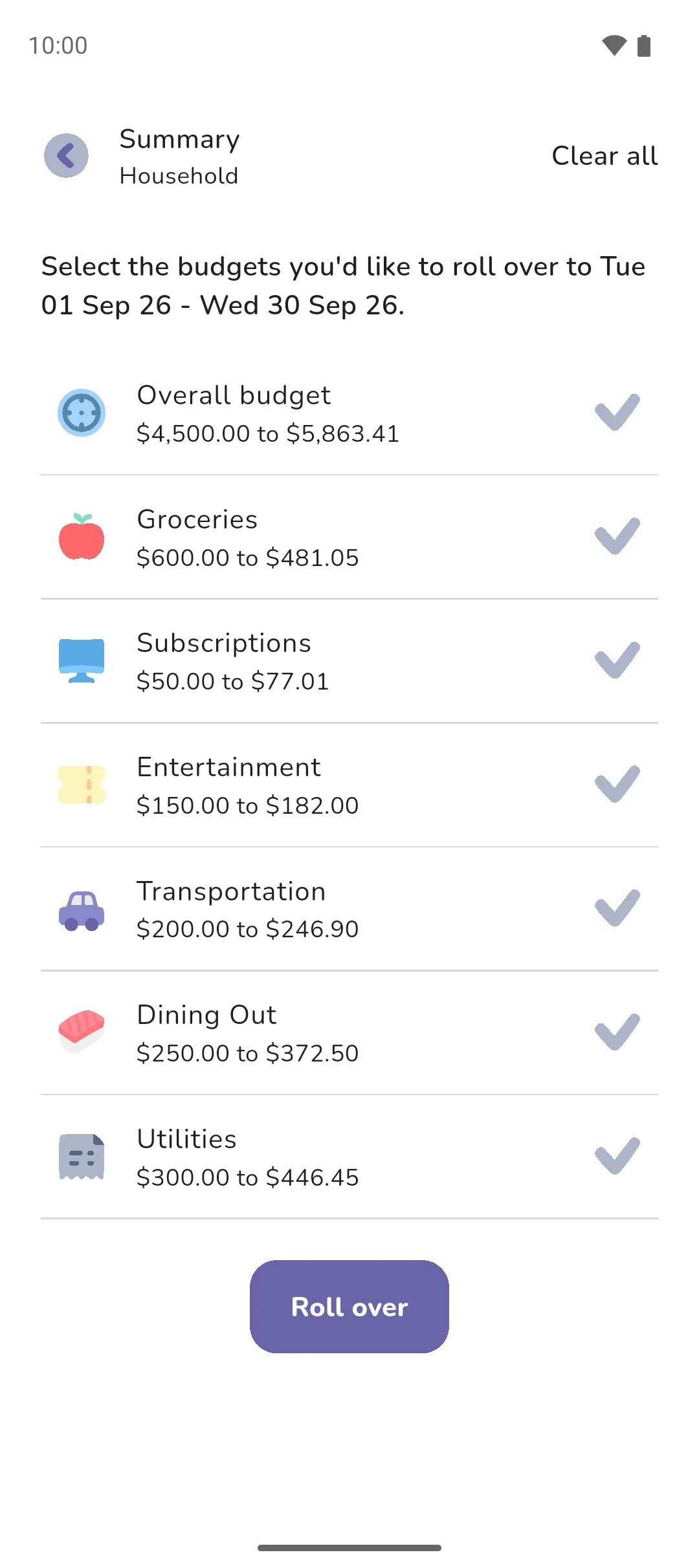
Pro is required to roll over. It is offered only in the previous period's summary, the period just before the current one, and rolls into the current period.
- On the summary screen, under the categories, the Rollover budgets toggle is on. Turn it off to keep every budget as it is.
- Tap Roll over. The next screen lists each budget the rollover would change, Overall budget and each category budget, with its amount and what it would become. A budget whose amount wouldn't change isn't listed. Every budget starts ticked with a Tick icon. Tap one to untick it, or Clear all in the top right.
- Tap Roll over. With nothing ticked the button reads Skip roll over, and every budget stays as it is.
- The Updated budgets screen then lists each budget you rolled, with how much was carried and its new amount. Tap Let's go.
 Tick icon. Tap one to untick it, or Clear all in the top right.
With Pro Sync: the summary opens with a Spending breakdown step: how many settled transactions you sorted as Needs or Wants when reviewing, and the total of each. Tap Continue for the budget step. A period with sorted transactions but no budget skips the budget step. See Reviewing transactions.
- A rolled-over budget is the budget you set plus what was left of it, or minus what went over. A budget of $500 with $450 spent becomes $550 for the new period. With $600 spent it becomes $400. A budget can't roll below zero.
- What was left is worked out the same way as Left to spend: every expense in the period, settled and pending alike. A category with Include in overall budget unticked stays out of the overall budget's result, but its own category budget still rolls over.
- Every rollover starts from your base budget, the amount you last entered manually. A rollover sets the new period's budget to the base plus or minus the previous period's result, and the base itself doesn't change. The next rollover starts from the base again, so an underspend doesn't pile up period after period. A manual edit to a budget sets a new base.
- Rolling over replaces the current period's budget, including any manual changes you made. Like any budget, the new amount carries forward to the periods that follow until you change it or roll over again. To redo a rollover, open the previous period's View summary card and roll over again.
- Goals don't roll over.
Say you enter an overall budget of $500 and spend $450. The summary reads Under by $50 and offers $500 to $550. You roll it over, and the new period's budget is $550: your base of $500 plus $50. You spend all $550, so the next summary reads You were on Target! and offers $550 to $500, because the rollover starts from the base of $500 again and this period's result is zero. Skip it, and the budget stays at $550.
See also: Budgets and goals, Home screen, Categories, Pending and settled, Reviewing transactions.