
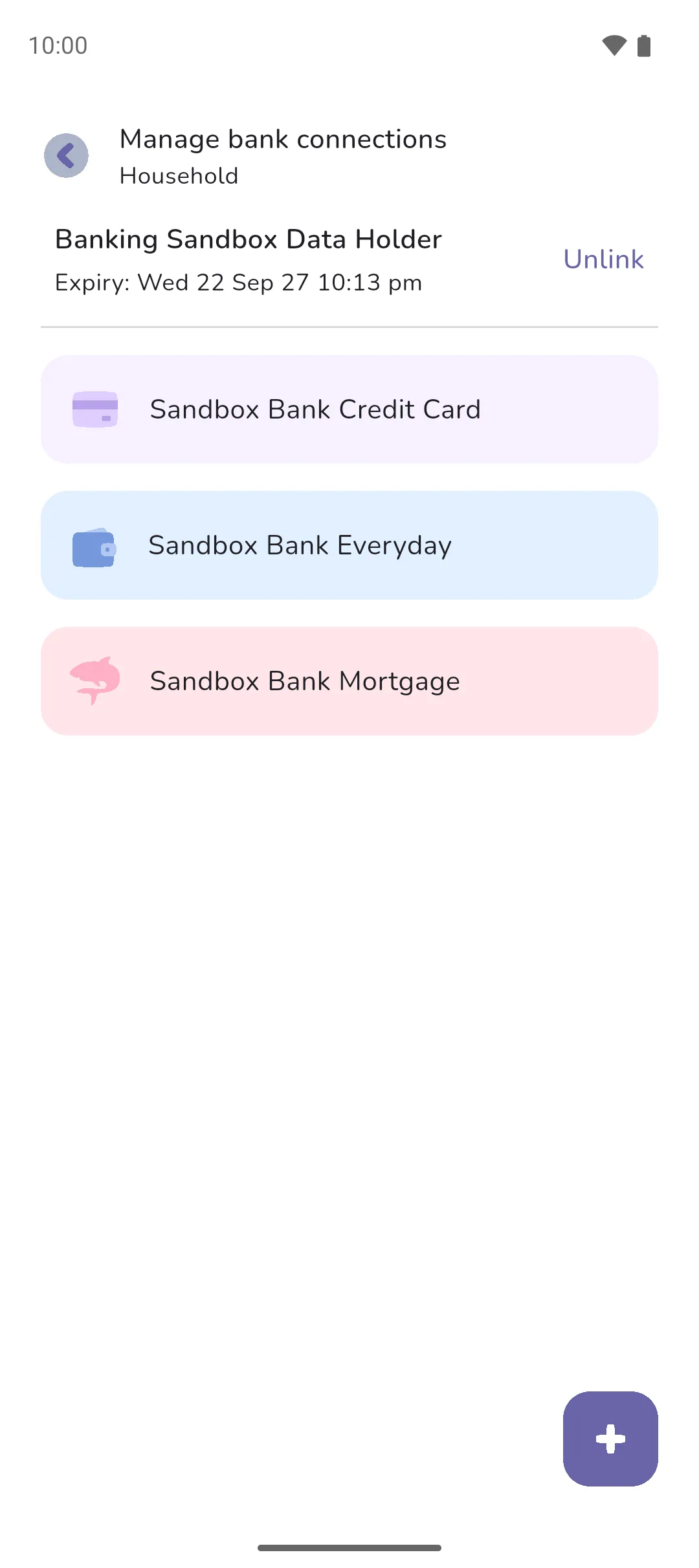
Managing bank connections is where each bank you've linked is listed with the accounts it syncs, and where you add a connection, reconnect a bank, change its accounts or unlink it. This doc also covers your connection allowance: how many banks you can link, and when an unlinked one is freed.
Where to find it: in a Money Manager book, the Book icon (top right) → Manage bank connections.
 Book icon (top right) → Manage bank connections.
Reconnect a bank
In Australia, a connection expires on the date Manage bank connections shows for it, and from then on its accounts stop syncing. Reconnect appears on the connection from 30 days before, and we send a push notification two weeks before. In the US and Canada, a bank can ask you to log in again, and your transactions from that bank stop syncing until you do. We send a push notification, Reconnect your bank, and opening Manage bank connections shows the dialog of the same name. The same dialog opens when no accounts can be found at the bank.
- Tap Reconnect on the connection, or on the Reconnect your bank dialog.
- The next screen lists the accounts to reconnect: the ones the connection synced before. Drag Slide to continue across. In the US and Canada, some banks skip this screen and open Plaid straight away.
- Sign in at your bank and choose every account the connection synced before. In Australia, an account you leave out can only be re-added with another connection.
- Back in the app, the accounts sync, and you're taken back to the Manage bank connections screen. Any new transactions sync too, but they can take a few minutes to arrive. If you linked extra accounts, the app offers to set them up: see Connecting a bank.
- In Australia, if you left an account out, the next screen lists which accounts were linked and which weren't, and offers to link the missing ones through Fiskil again, using up another connection. If you selected none of the accounts listed, the app says no accounts were found.
Change which accounts are linked
In the US and Canada, tap Update on the connection. Plaid opens at your bank. Choose the accounts and finish. Back in the app, the accounts sync, and the app offers to set up any account you added. An account you dropped stays in the book with its transactions, stops syncing and leaves the connection's list. In Australia, the choice of accounts is final for a connection. To add a bank account, add a connection with the Plus button.
 Plus button.
Unlink a bank
Tap Unlink on the connection, or on the Reconnect your bank dialog, and confirm. The connection leaves the screen within a few minutes.
An unlinked account stays in the book with its transactions and stops syncing. Once its Link status reads Disabled, you can delete it. To see the link status, tap the account on Manage accounts, or the tracker on Manage trackers.
Your connections
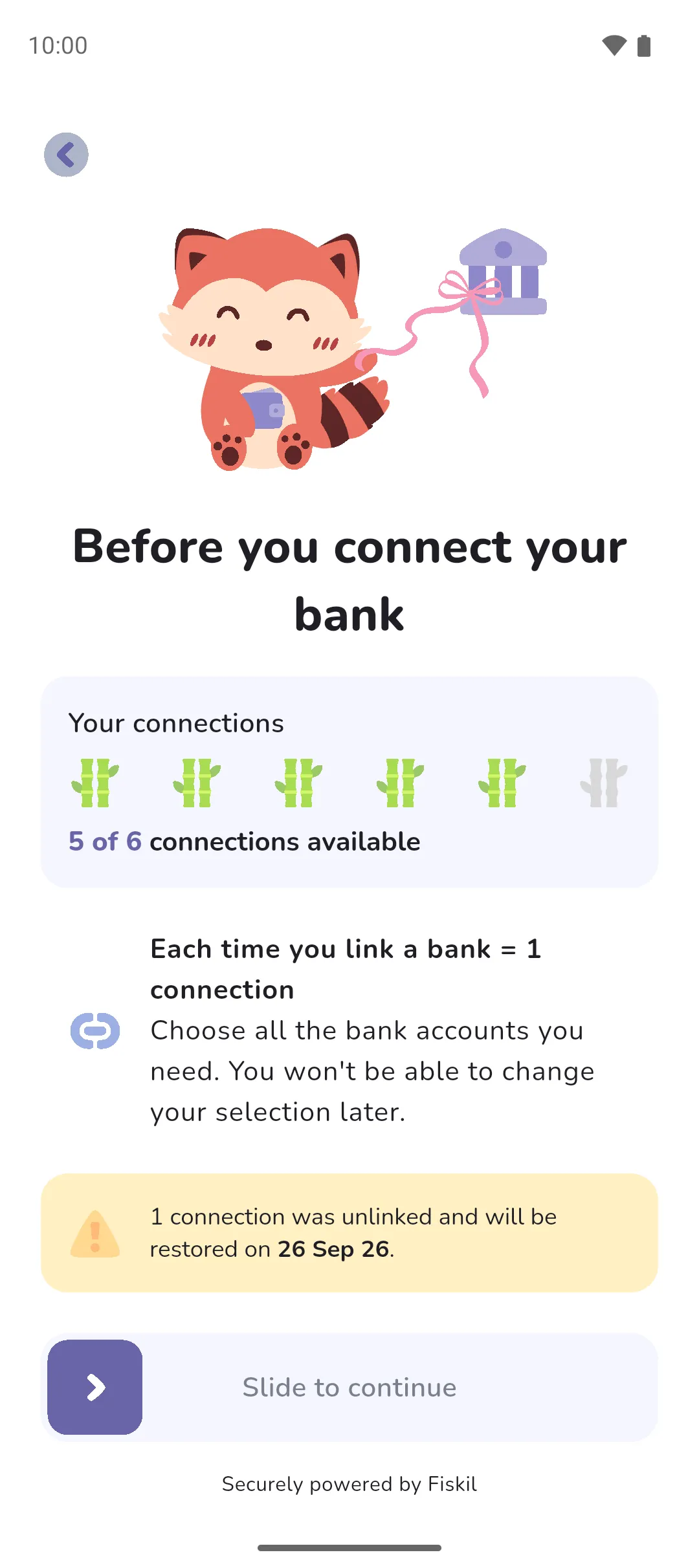
Each bank you link uses up one connection. In Australia, reconnecting uses up one too, but in the US and Canada, it doesn't. The Your connections card on Before you connect your bank shows how many you've used of your limit, and the date unlinked connections are restored. The limit is two during the trial and six at full price. Your allowance runs month to month, ending on the date shown. A connection linked and unlinked in the same month counts until that date.
- A linked account on an active connection can't be deleted. Unlink the connection first.
- The date unlinked connections are restored is fixed. In Australia, it's the 26th of each month at 2:12pm UTC. In the US and Canada, it's the 1st of each month at midnight UTC.
- Linking the same bank again after unlinking it picks up where the accounts left off. They aren't set up a second time, and their transactions carry on.
- On Manage bank connections, pull down to refresh your connections.
See also: Connecting a bank, Reviewing transactions, Linked accounts, Accounts, Trackers.