
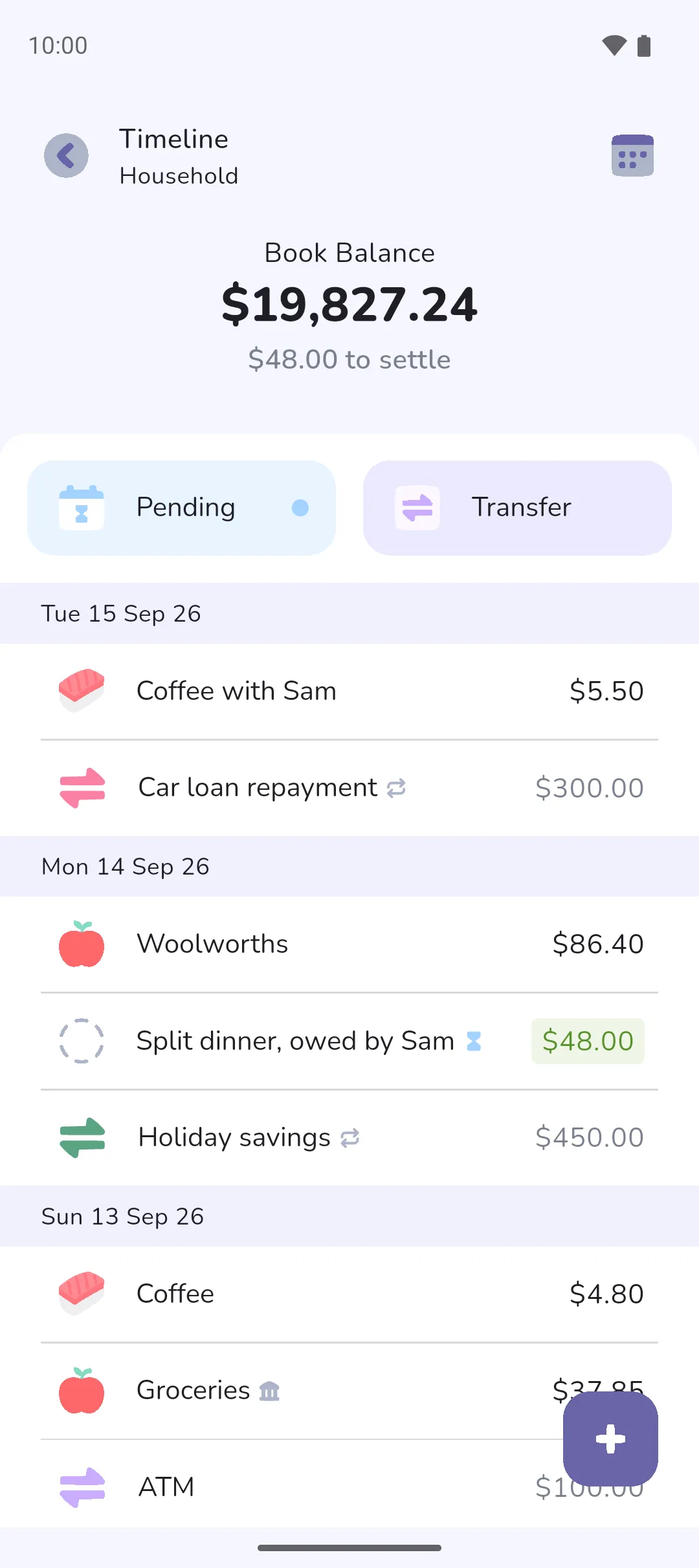
The timeline lists a book's or an account's transactions day by day, and the calendar lays the same transactions over a month with each day's cash flow, money in minus money out, written on the day. Between them they answer what happened on a given day, and where your balance will be once everything pending has settled.
Where to find it: in two places.
- In an Expense Tracker book, the Timeline tab (Timeline tab icon, second in the bottom bar).
- In a Money Manager book, the Accounts tab. Tap Book overview for the whole book, or an account for that account alone.
 Timeline tab icon, second in the bottom bar).
Each opens in the view you used last, the timeline or the calendar. The Calendar icon in the top bar switches to the calendar, and the List icon switches back. Pro is required for the calendar.
 Calendar icon in the top bar switches to the calendar, and the
  List icon switches back.
 The timeline
The screen is titled Timeline.
- The top shows Book Balance or Account Balance: settled money up to today. Pending money dated today or earlier shows beneath as an amount to settle.
- Pending opens the pending list, and carries a blue dot when there's something to settle. In a Money Manager book, a Transfer button is found beside it.
- Transactions are listed newest first, grouped by day, with today's group headed Today. The list stops at today. A transaction in the future stays on the Pending screen until its date arrives. The list loads more as you scroll.
- Tap a transaction to open it. A row shows its tags and reminder with Pro, and its time when Show transaction time is on, under Settings → Date and time.
- On the Timeline tab, the Search icon opens Search.
- The Plus button in the bottom right adds a transaction.
 Search icon opens
  Plus button in the bottom right adds a transaction.
The calendar
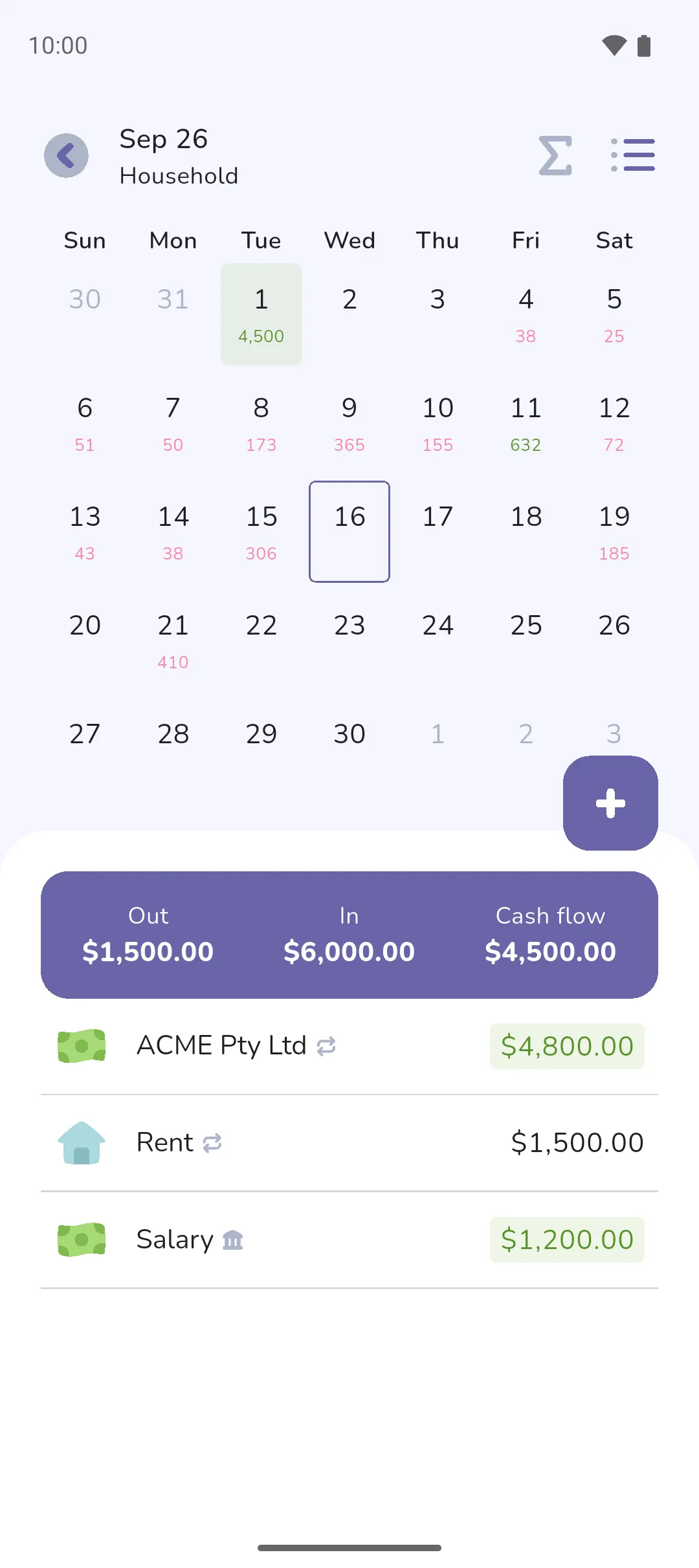
- Tap the Calendar icon in the top bar.
- Swipe left or right to change month. In an Expense Tracker book, you can also tap the month at the top to pick one.
- Tap a day. The list beneath shows its transactions, newest first, under three figures: Out, In and Cash flow.
- Tap the Plus button to add a transaction dated the selected day.
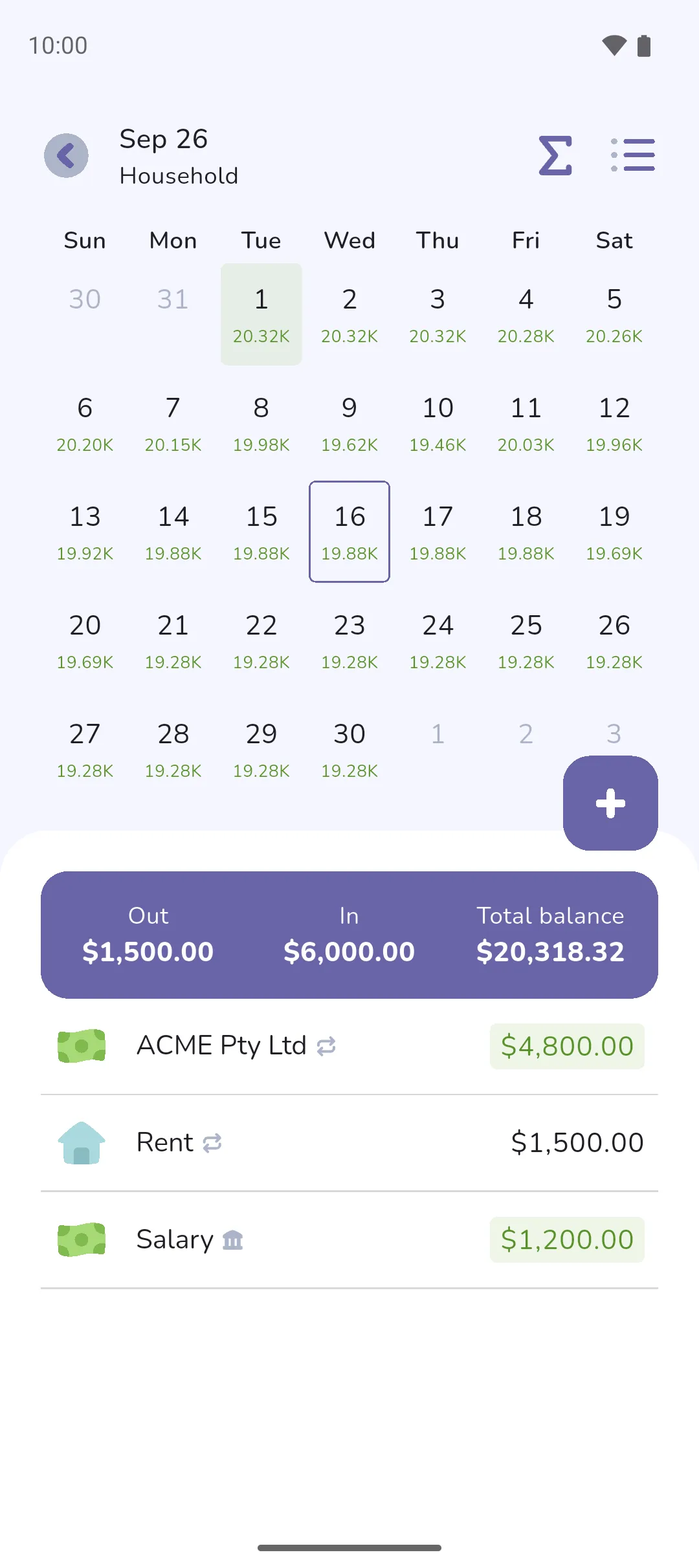
Each day carries its cash flow: money in minus money out, pending included. The figure is green when more came in than went out, and pink when more went out. A day with no transactions stays blank. A figure of $10,000 or more is shortened, so $12,500 shows on the day as 12.50K.
Out and In for the selected day add settled and pending together. On the book, Out is the day's expenses and In its income. On an account, transfers count too: money that left the account is under Out, and money that arrived under In. Cash flow is In minus Out.
Tap the Total balance icon in the top bar to switch every day to its total balance. That is the balance at the end of the day, counting everything up to it, pending included. The third figure above the day's list reads Total balance. On the book, it's the balance Book overview shows, with pending money counted as well. A day in the future shows where you'll stand once everything pending by then has settled. A day that ends at exactly zero shows 0. Tap the Total balance icon again to go back to cash flow.
 Total balance icon in the top bar to switch every day to its total balance. That is the balance at the end of the day, counting everything up to it, pending included. The third figure above the day's list reads Total balance. On the book, it's the balance Book overview shows, with pending money counted as well. A day in the future shows where you'll stand once everything pending by then has settled. A day that ends at exactly zero shows 0. Tap the
 - The timeline stops at today. A transaction in the future isn't in it yet: find it on the Pending screen, or on its day in the calendar.
- Every calendar figure counts pending money. The balance at the top of the timeline counts settled money only, so the two can differ by whatever is still to settle.
- A transfer between your own accounts isn't an expense, so the book's In and Out leave it out. Loans are the exception: a repayment counts under Out and money borrowed under In, as in Transfers.
- A tracker's screen, from the Trackers tab, is a timeline only, with no Calendar icon. It has the savings or loan insight at the top. See Trackers and Savings and loan insights.
- With Pro Sync: a linked account's timeline and calendar have no Plus button and no Total balance icon. See Linked accounts.
Say it's the 7th and you've entered rent for the 15th as Pending, settles automatically. The timeline doesn't list it, and Book Balance doesn't count it. In the calendar, the 15th shows the rent in pink. Tap the Total balance icon, and the 15th shows what you'll have left once the rent is paid.
See also: Adding a transaction, Pending and settled, Transfers, Accounts, Search.