
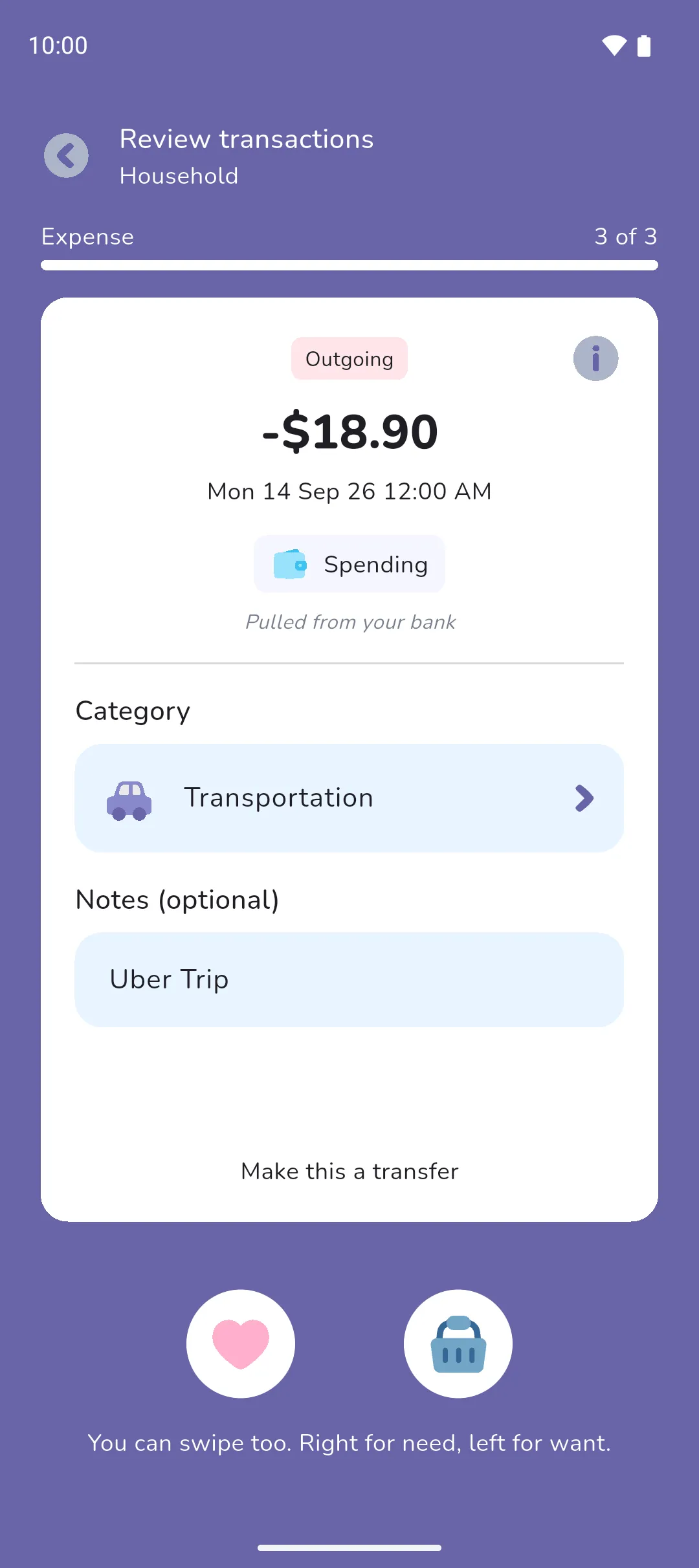
Reviewing transactions is how a transaction from the bank gets added to your budget the way you intend. You can change its category, sort it as a need or a want, or mark it as a transfer if the bank misclassified it. This doc covers the review itself, marking a transfer, reviewing a transaction again, and the daily sync time.
Where to find it: in five places.
- The Home tab: the You have transactions to review card.
- Your profile picture (top left of the Home tab) → Profile → Bell icon → Notifications: the same card, one per book.
- A linked account or tracker's screen while it has nothing to show yet: the Review transactions button.
- The push notification we send when a sync brings new transactions.
- A settled synced transaction, transfer or tracker entry: tap it, then Review again.
 Bell icon → Notifications: the same card, one per book.
The screen is titled Review transactions. Each book is reviewed on its own.
Review your transactions
- Open the review. The app syncs first. The first time, tap Start first review.
- The transactions come in up to four rounds: expenses on everyday and credit accounts, loan trackers, income on everyday and credit accounts, then savings trackers. A round with nothing in it is skipped. The bar at the top names the round, Expense, Loan, Income or Savings, and counts the transactions.
- Each transaction shows Outgoing or Incoming, the amount and date, the account, and Pulled from your bank. The Info icon opens the transaction's details from the bank, with the description under Notes and the bank's reference where there is one.
- For an expense or income, pick the Category. The app pre-fills one when it can, based on the transactions you've already reviewed. When the bank suggests a category that you don't have, the category list offers to add it. Notes (optional) is pre-filled with the bank's description.
- Confirm the transaction. For an expense, tap the Need button or swipe right for a need, or the Want button or swipe left for a want. For income, tap the Tick button or swipe to confirm. The transaction is saved as settled and the next one comes up.
- For a savings or loan transaction, pick the Transaction type instead. Then tap the Tick button or swipe to confirm.
- All done! ends the review with the total and count of your needs and wants. A reviewed transaction shows under its account on the Accounts tab, and a tracker entry under its tracker on the Trackers tab. After your very first review, the app asks you to set a daily sync time.
 Info icon opens the transaction's details from the bank, with the description under Notes and the bank's reference where there is one.
 Need button or swipe right for a need, or the
  Want button or swipe left for a want. For income, tap the
  Tick button or swipe to confirm. The transaction is saved as settled and the next one comes up.
Mark a transfer
Money moved between your own accounts isn't an expense or income. Tap Make this a transfer to mark an expense or income as a transfer instead. Transfer saved shows and the next transaction comes up. For a savings transaction, Deposit and Withdrawal save it as a transfer, and for a loan transaction Borrow does. Money paid into a loan tracker is a repayment: the app saves it as a transfer without a review.
Each side of a transfer is reviewed on its own. $200 Outgoing from your everyday account gets Make this a transfer, and the same $200 Incoming on your linked savings tracker gets Deposit. Neither counts as an expense or income.
Review a transaction again
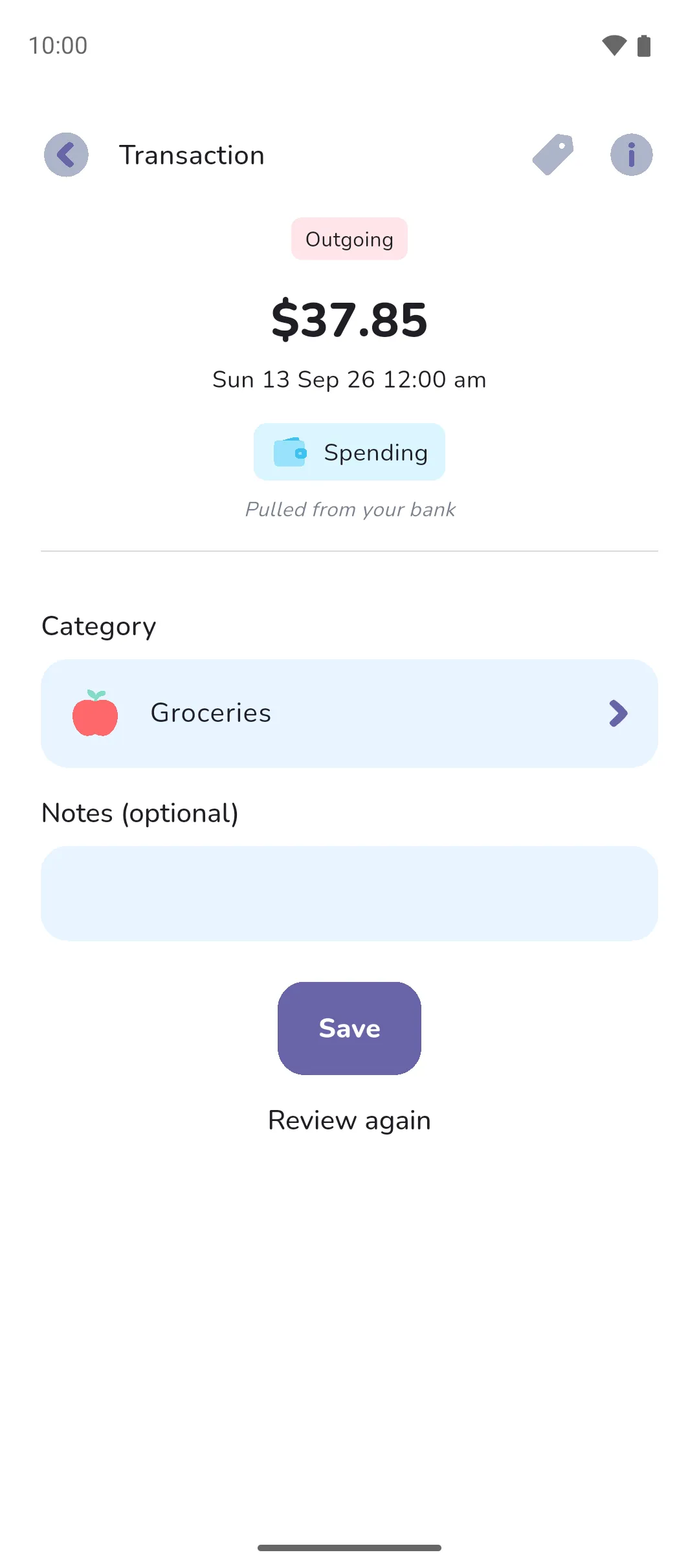
Open a settled synced transaction, transfer or tracker entry and tap Review again at the bottom. The review opens on that one transaction. Confirming it replaces what you chose before: the category, need or want, the notes, or a transfer, in either direction. A repayment into a loan tracker has no Review again.
Set the daily sync time
After your first review, When should we sync your transactions? asks for a time, starting at 8:00pm. Tap the time to change it, then Confirm. Once a day, from that time, we sync with all your banks, and when the sync adds new transactions we send a push notification that it's review time. The time is on Settings (your profile picture → Profile → Settings icon) as Daily bank sync. Tap it to change it.
 Settings icon) as Daily bank sync. Tap it to change it.
- Daily bank sync on Settings is the daily sync time. With the toggle off, bank sync is disabled until it's on again.
- A pending transaction from the bank, such as a card payment the bank hasn't confirmed, doesn't come to review. It shows on the account as pending with no category. Once the bank confirms it, the app brings in the final version for you to review.
- Once you've marked a transaction as a transfer, a later one with the same description and category from the bank is saved as a transfer without a review. Dates and reference numbers in the description are ignored. A description of a single word, such as Bills, is never matched to an earlier transfer, because banks reuse those for unrelated payments.
- A new linked account starts with up to five transactions, the newest from the last seven days: see Connecting a bank.
- Leaving a review partway keeps every transaction you confirmed. The rest stay to review.
See also: Connecting a bank, Managing bank connections, Linked accounts, Pending and settled, Transfers, Categories, Settings.