
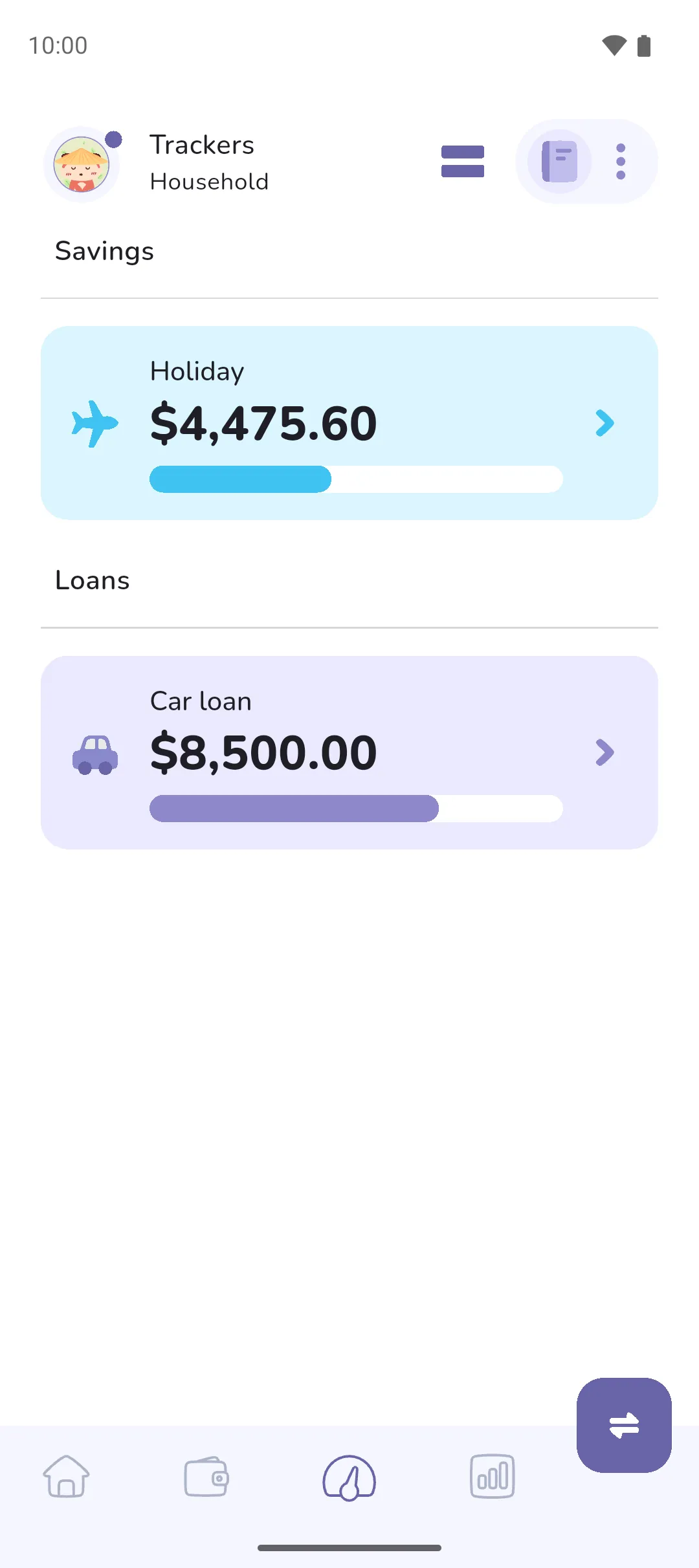
A tracker is a savings pot with a goal, or a loan you're paying down. Trackers hold money you're not spending day to day: you can't log a purchase on one, and money moves in and out by transfer, the way a real savings or loan account works. A tracker answers "how far along am I?" at a glance.
Where to find it: in two places.
- The Trackers tab (Trackers tab icon, middle of the bottom bar) shows every tracker with its progress.
- To add, edit or delete one, tap the Book icon (top right) → Financial goals → Manage trackers.
 Trackers tab icon, middle of the bottom bar) shows every tracker with its progress.
 Book icon (top right) → Financial goals → Manage trackers.
Create a tracker
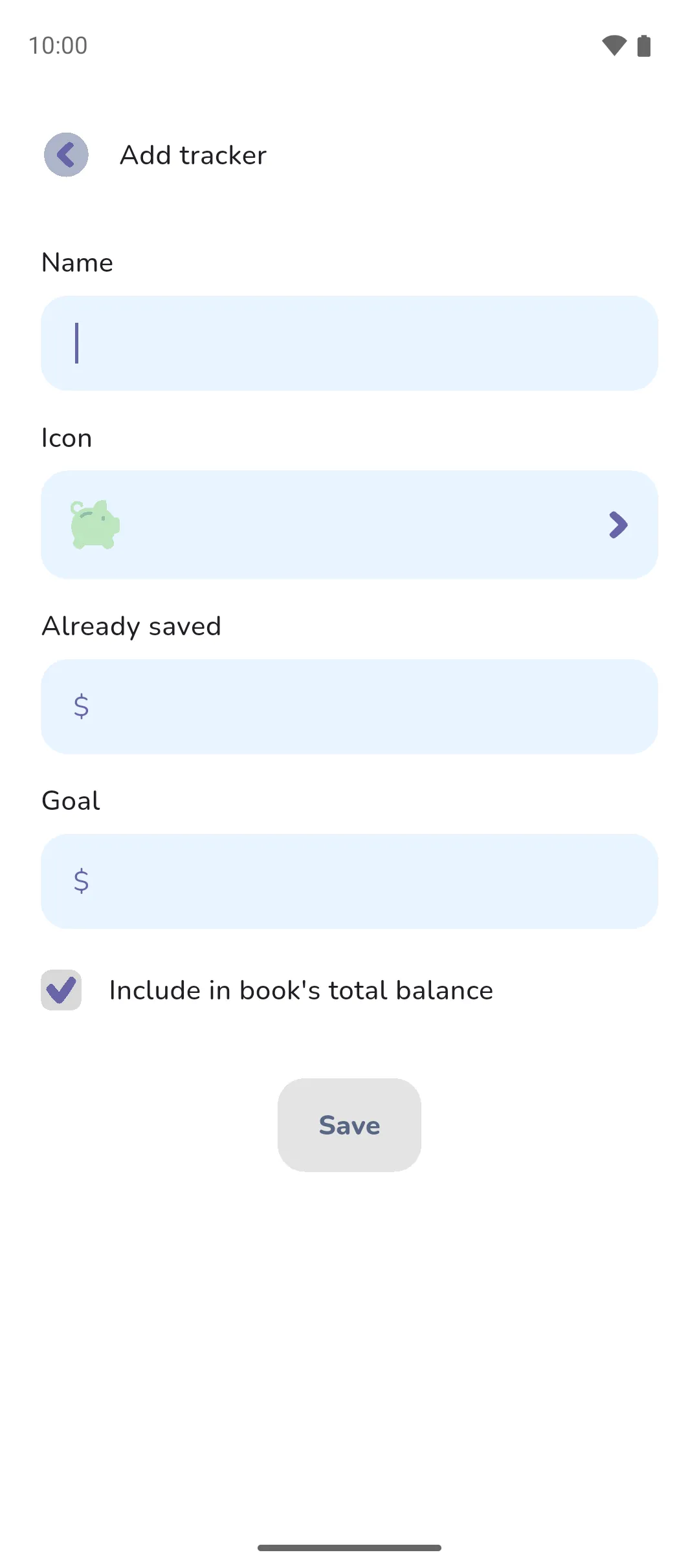
- On Manage trackers, tap the Plus button. On an empty Trackers tab, the Create your first tracker card does the same.
- Choose Savings or Loan. This can't be changed later.
- Give it a Name and pick an Icon. The icon sets the tracker's colour.
- Enter what's already there: Already saved for savings, Paid off for a loan. Then the target: Goal for savings, Loan amount for a loan. For a loan, either enter the original amount and what you've paid, or set paid off to 0 and enter today's balance as the loan amount.
- Leave Include in book's total balance ticked unless you'd rather the book's total ignore this money.
- Tap Save.
 Plus button. On an empty Trackers tab, the Create your first tracker card does the same.
With Pro Sync: in a Money Manager book, step 2 is followed by a choice between Manual tracking and Link bank account. A linked tracker syncs its balance from the bank: see Connecting a bank.
Move money in and out
In a Money Manager book, a deposit or a repayment is a transfer. On the Accounts tab or the Trackers tab, tap the Transfer button in the bottom right, choose From and To (the picker's Trackers tab lists yours), enter the amount, and tap Transfer. From a tracker's own screen the Transfer button fills the tracker in as To. A regular payment can repeat: see Recurring transactions and transfers.
 Transfer button in the bottom right, choose From and To (the picker's Trackers tab lists yours), enter the amount, and tap Transfer. From a tracker's own screen the
 An Expense Tracker book has no transfers. Tap the Add tracker entry button in the bottom right of the Trackers tab instead, choose the tracker, and pick Deposit or Withdrawal for savings, Repay or Borrow for a loan. The app moves the money for you, and the entry doesn't count as income or an expense.
 Add tracker entry button in the bottom right of the Trackers tab instead, choose the tracker, and pick Deposit or Withdrawal for savings, Repay or Borrow for a loan. The app moves the money for you, and the entry doesn't count as income or an expense.
Add an entry for interest and fees
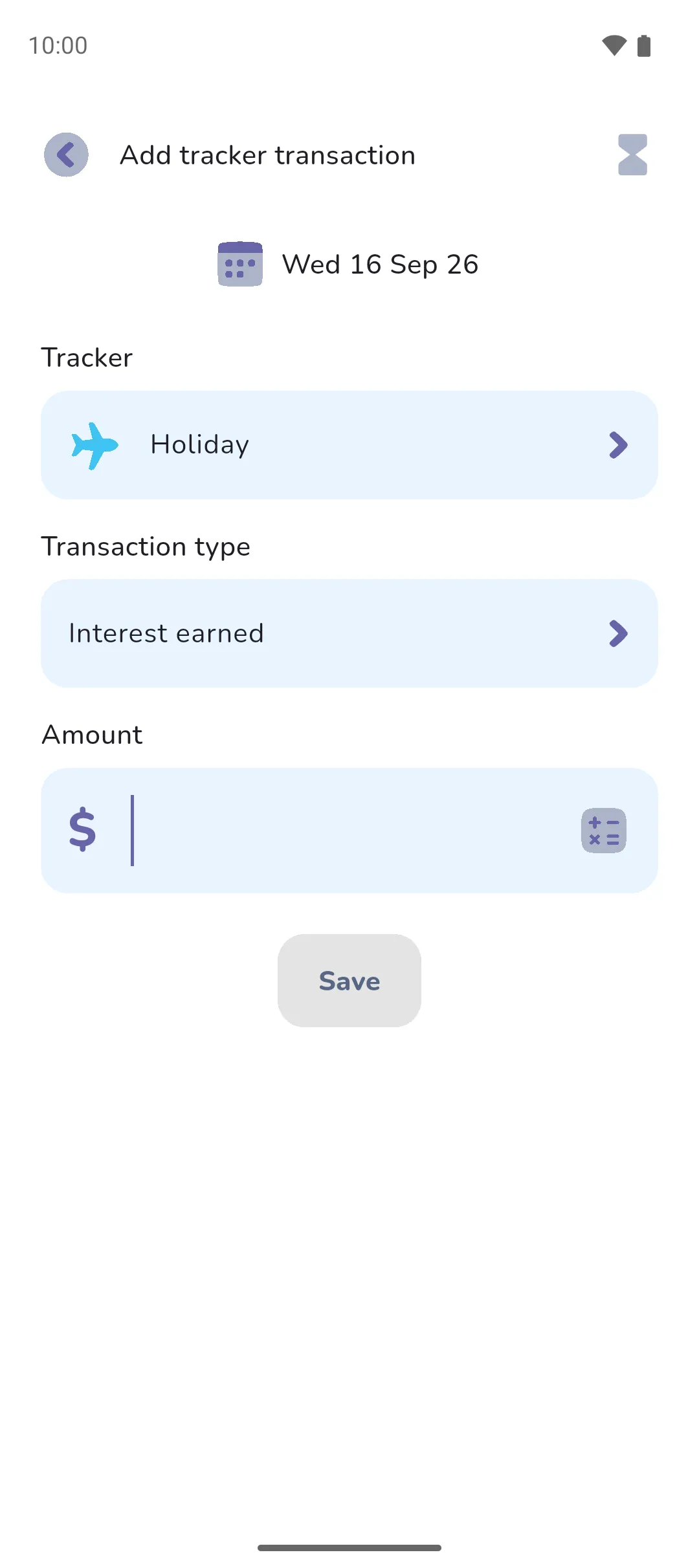
Savings earn interest, loans accrue it, and some accounts charge fees. These change a tracker's balance without touching any of your accounts, so they're entries rather than transfers. Open the tracker from the Trackers tab, tap Add entry, set the Transaction type, enter the amount, and save.
| Tracker | Transaction type | What it records |
|---|---|---|
| Savings | Interest earned | Interest the bank added to your savings. |
| Savings | Fees charged | A fee taken from your savings. |
| Savings | Received | Money someone else paid straight into your savings. |
| Savings | Sent | Money spent or sent straight from your savings. |
| Loan | Interest charged | Interest added to your loan. |
| Loan | Fees charged | A fee added to your loan. |
A quick entry whenever a statement arrives keeps the tracker honest against the real account.
Spend from savings
Saved money goes back the way it came. Log the purchase as an expense on the account you paid from, then transfer the same amount out of the tracker to that account. In an Expense Tracker book, log the expense and add a Withdrawal entry on the tracker.
- A free book holds one tracker. For a second, Pro is required.
- A transfer into a savings tracker isn't an expense, so it leaves your budget alone. A transfer into a loan tracker counts as an expense under the Loans repaid category. To keep loan payments out of your budget, tap the Book icon → Organisation → Categories, open Loans repaid under Loan tracker, and untick Include in overall budget. Interest and fees entries stay out of your budget unless you tick them there under Savings tracker.
- A savings tracker shows Amount saved against its goal. A loan tracker shows Amount owing, and its bar runs down as you repay.
- Deleting a tracker deletes every transaction and transfer in it. A transfer between the tracker and an account is deleted from the account too, so that account's balance changes. A tracker that a recurring transfer uses, such as a monthly deposit, can't be deleted until you move the recurring transfer to another tracker or account, or delete it: see Accounts.
- On the Trackers tab, pull down to sync your data.
See also: Accounts, Transfers, Categories, Savings, Savings and loan insights, and the savings and loan steps of the budget setup example.