
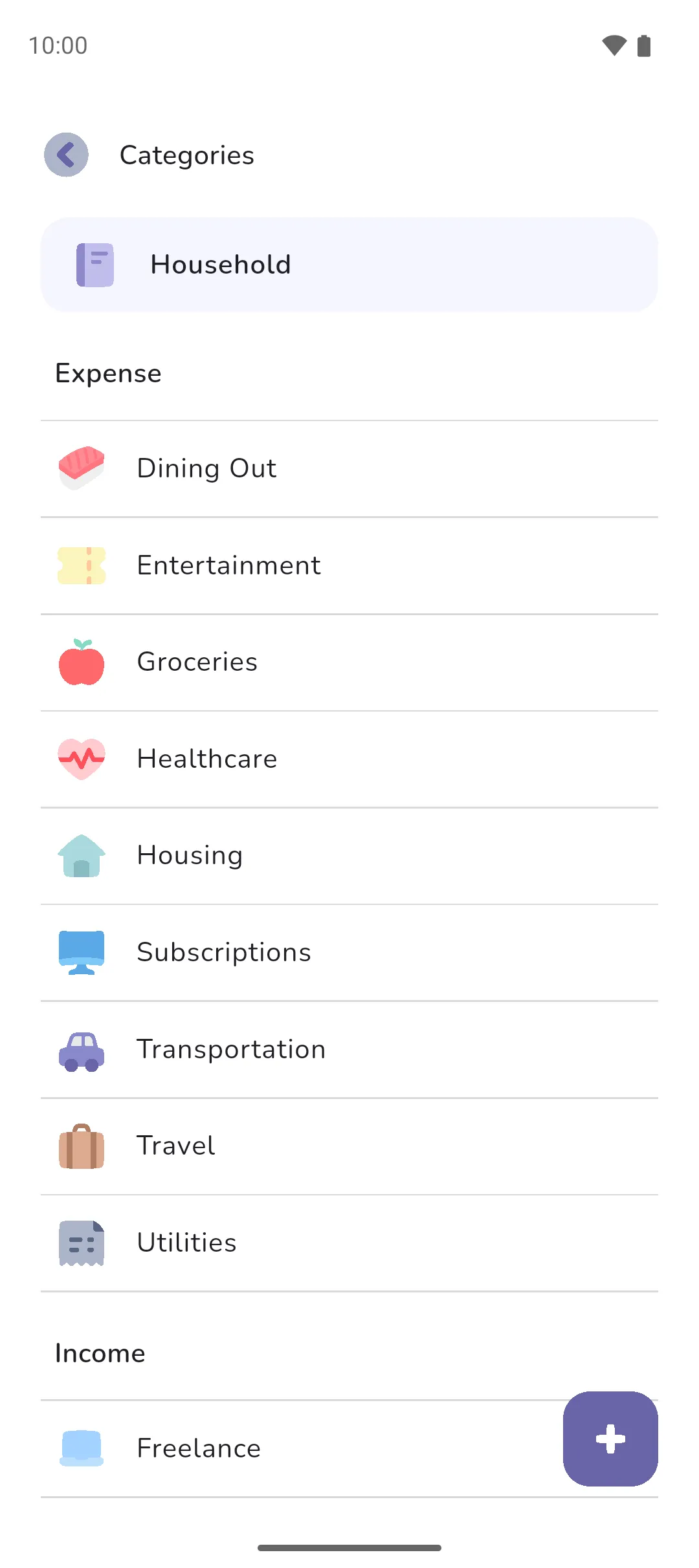
A category is how expenses and income are grouped: Groceries, Housing, Salary. Every settled transaction has one, and the home screen, your budget and analytics all add up by category.
Where to find it: in two places.
- The book's list: tap the Book icon (top right) → Organisation → Categories. The list is split into Expense, Income, Savings tracker and Loan tracker.
- While adding a transaction: the Plus button on Choose a category creates one on the spot.
 Book icon (top right) → Organisation → Categories. The list is split into Expense, Income, Savings tracker and Loan tracker.
 Plus button on Choose a category creates one on the spot.
Add a category
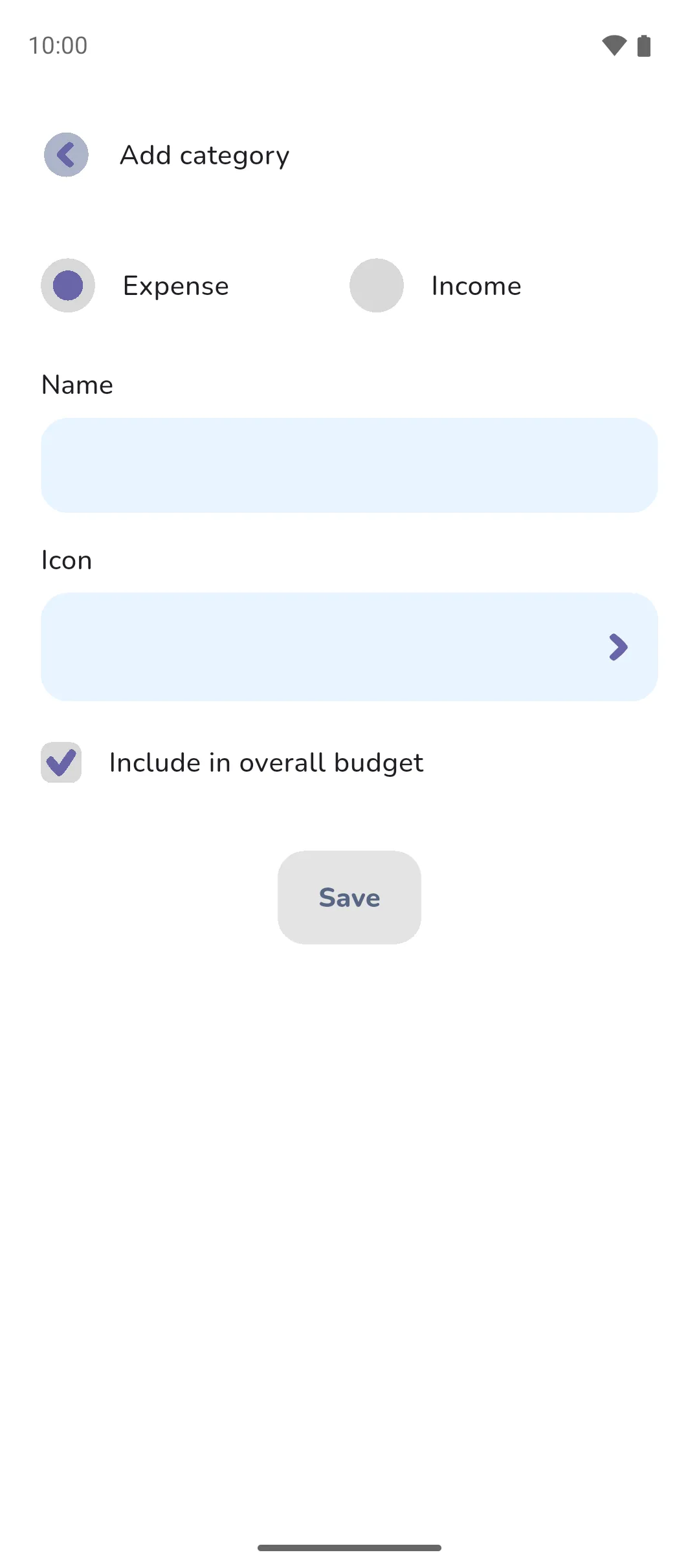
- On Categories, tap the Plus button.
- Choose Expense or Income. This can't be changed later.
- Enter a Name and tap Icon to pick one. Choose a category icon has a search box at the top. Type part of a name to narrow the grid.
- Leave Include in overall budget ticked, or Include in overall goal for an income category, unless this category should stay out of your overall figure.
- Tap Save.
A new book starts with Dining Out, Entertainment, Groceries, Healthcare, Housing, Transportation and Utilities under expenses, and Salary under income. They're ordinary categories. Rename them, change their icons or delete them like any other.
Edit or delete a category
Tap the category on Categories to open Edit category. Change the name, the icon or the tick and tap Save. To delete it, tap the Delete icon in the top right. A category with no transactions is deleted once you confirm. A category with transactions asks how to proceed:
 Delete icon in the top right. A category with no transactions is deleted once you confirm. A category with transactions asks how to proceed:
- Delete everything, including all transactions.
- Transfer transactions to another category, then delete this one. The app opens Choose a category for you to pick where they go. Recurring transactions move with them.
A category with a recurring transaction, or with transactions from the bank, can't be deleted with its transactions. They can only move: tap Transfer and pick the category they go to.
Whichever way, any budget or goal set on the category is deleted with it. Transactions you move start counting against the new category's budget instead.
Tracker categories
Savings tracker and Loan tracker list the categories the app gives tracker entries: Received, Interest earned, Sent and Fees charged for savings, Borrowed funds and Loans repaid for loans. They can't be renamed or deleted, and they don't appear when you add an ordinary transaction. The one thing you can change is the tick: Include in overall budget on an expense category, Include in overall goal on an income one. Interest earned and Fees charged start unticked, so they stay out of your overall figures. Received, Sent, Borrowed funds and Loans repaid start ticked. See Trackers for what each one records.
- Untick Include in overall budget and the category's expenses stop counting toward your overall budget and what's left to spend. It still shows in the category's own total, and it can still have a budget of its own. The budget screen marks such a category Excluded.
- Two categories in a book can't share the same type, name and icon. The same name with a different icon is allowed.
- Categories belong to a book. A second book has its own list.
See also: Adding a transaction, Budgets and goals, Trackers.