
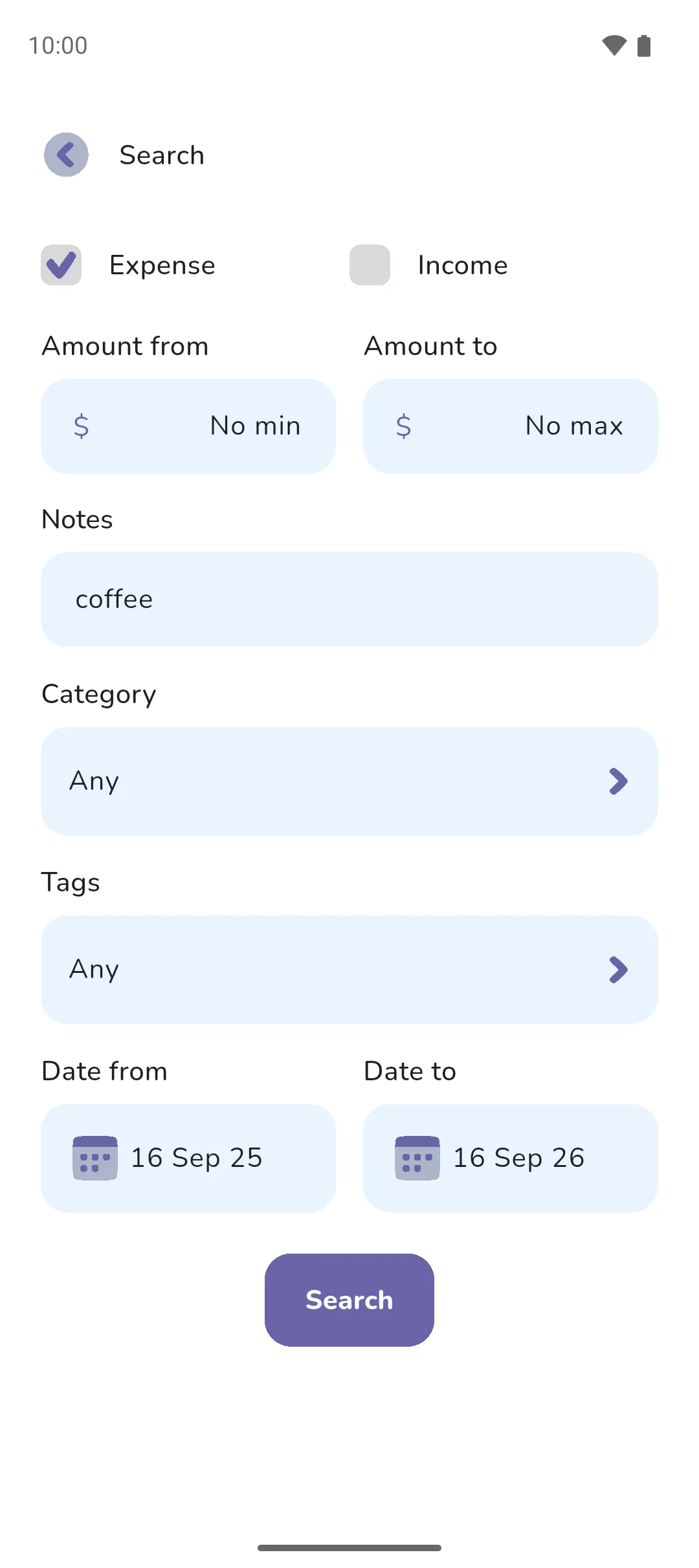
Search finds transactions across a book by type, amount, note, category, tag and date, and totals what it finds. It answers how much went on one thing over a stretch of time, whichever account paid for it.
Where to find it: the Search icon, in three places.
 Search icon, in three places.
- The top bar of the Accounts tab in a Money Manager book, or of the Timeline tab in an Expense Tracker book, in its list or calendar view.
- The top of every list the Home tab opens.
- The top of the search results, where it starts a fresh search.
The screen is titled Search.
Search for transactions
- Tick Expense, Income or both. Expense starts ticked. With neither ticked, the Search button is greyed out.
- Set Amount from and Amount to to narrow by amount. Either can stay empty, as No min and No max.
- Type under Notes to find every transaction whose note contains what you typed. Capitals don't matter.
- Tap Category to filter by one. The field shows only while exactly one of Expense and Income is ticked, since a category belongs to one or the other. It reads Any until you pick one. Tapping the chosen category again clears it back to Any, and so does unticking its type.
- Tap Tags to go to the Select tags screen. Select your tags, then tap Apply. A transaction must have every tag you picked to show. The field reads Any, 1 tag selected or how many you picked. Pro is required for tags.
- Set Date from and Date to. They start a month apart, ending today, and both dates are inclusive. Date from can't pass Date to.
- Tap Search.
The results
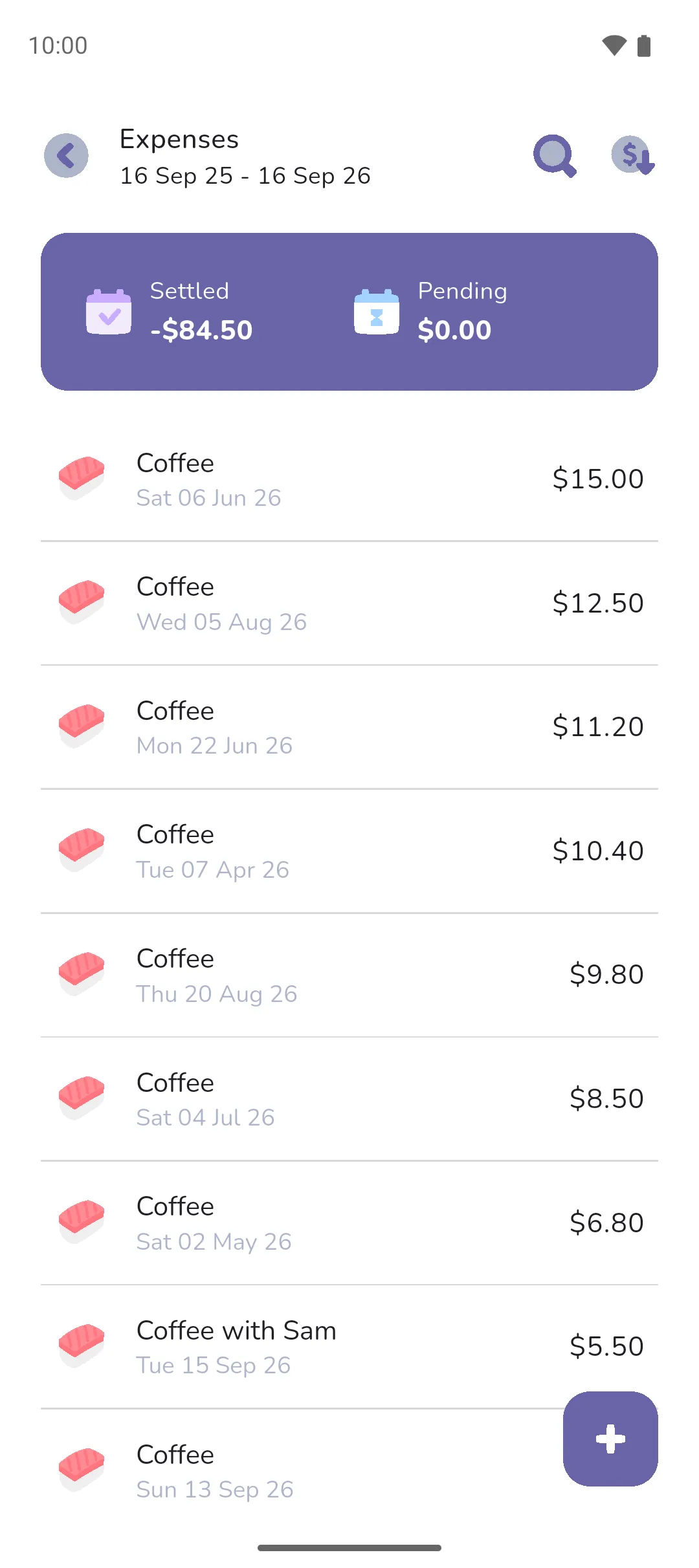
- The card at the top has two totals, Settled and Pending, one for each status. Each is the income in the results minus the expenses, so a search for expenses alone gives a negative figure.
- Results are ordered by amount, largest first. The Order by amount icon in the top right shows how the results are ordered. Tap it to order them by date, newest first, shown by the Order by date icon. Tap that to switch back.
- A result shows its note, or its category when it has no note, with its date and amount. Tap it to open it: see Adding a transaction.
 Order by amount icon in the top right shows how the results are ordered. Tap it to order them by date, newest first, shown by the
  Order by date icon. Tap that to switch back.
Good to know
- Search finds income and expenses on your everyday accounts and savings trackers, pending ones included. A loan tracker's interest and fee entries stay out, and so does an account's Initial balance entry.
- A transfer isn't income or an expense, so search leaves it out. A deposit into savings and a loan repayment don't show. In an Expense Tracker book, a Deposit, Withdrawal, Repay or Borrow entry is a transfer too, so it stays out as well.
Say you tick Expense, type coffee under Notes and tap Search. Every expense from the last month with coffee in its note is listed, largest first. Settled shows what the ones already paid add up to, as a negative figure, and Pending the ones still to settle.
See also: Adding a transaction, Tags, Pending and settled, Budgets and goals, Calendar and timeline.