
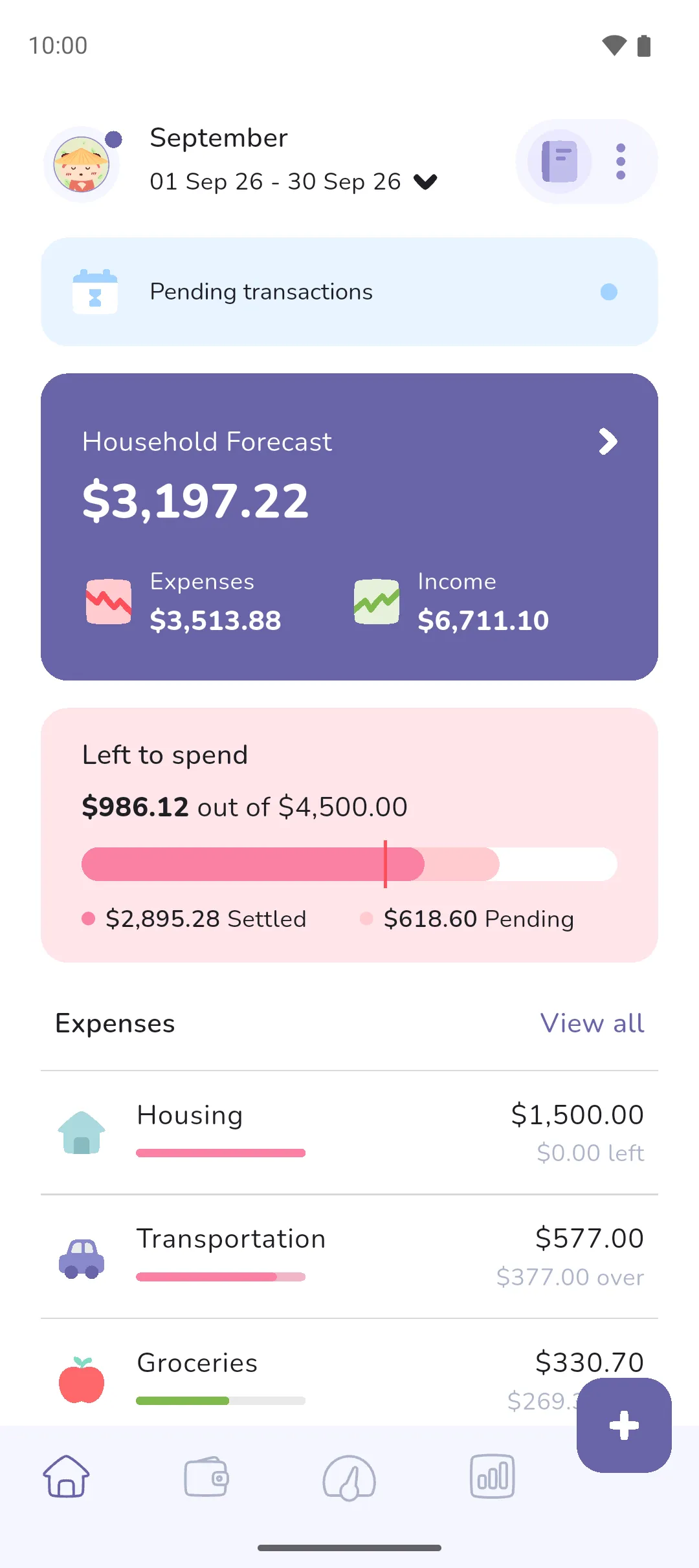
The home screen shows how your finances are tracking for the period. Its job is to quickly tell you where your money went, what you set aside, how much you can still spend, and whether anything needs your attention, such as a transaction to settle or synced transactions to review.
Where to find it: in two places.
- The Home tab (Home tab icon, first in the bottom bar) is the screen itself.
- Your profile picture (top left of the Home tab) → Profile → Settings icon → Settings → Customise home chooses which cards show and how they behave.
 Home tab icon, first in the bottom bar) is the screen itself.
 Settings icon → Settings → Customise home chooses which cards show and how they behave.
The title at the top is the month the period starts in. Tap it, or the Expand icon, to pick another period: a month in a monthly book, a week or fortnight otherwise. Tap the Book icon (top right) to switch to another book. The Plus button adds a transaction.
 Expand icon, to pick another period: a month in a monthly book, a week or fortnight otherwise. Tap the
  Book icon (top right) to switch to another book. The
  Plus button adds a transaction.
What the screen shows
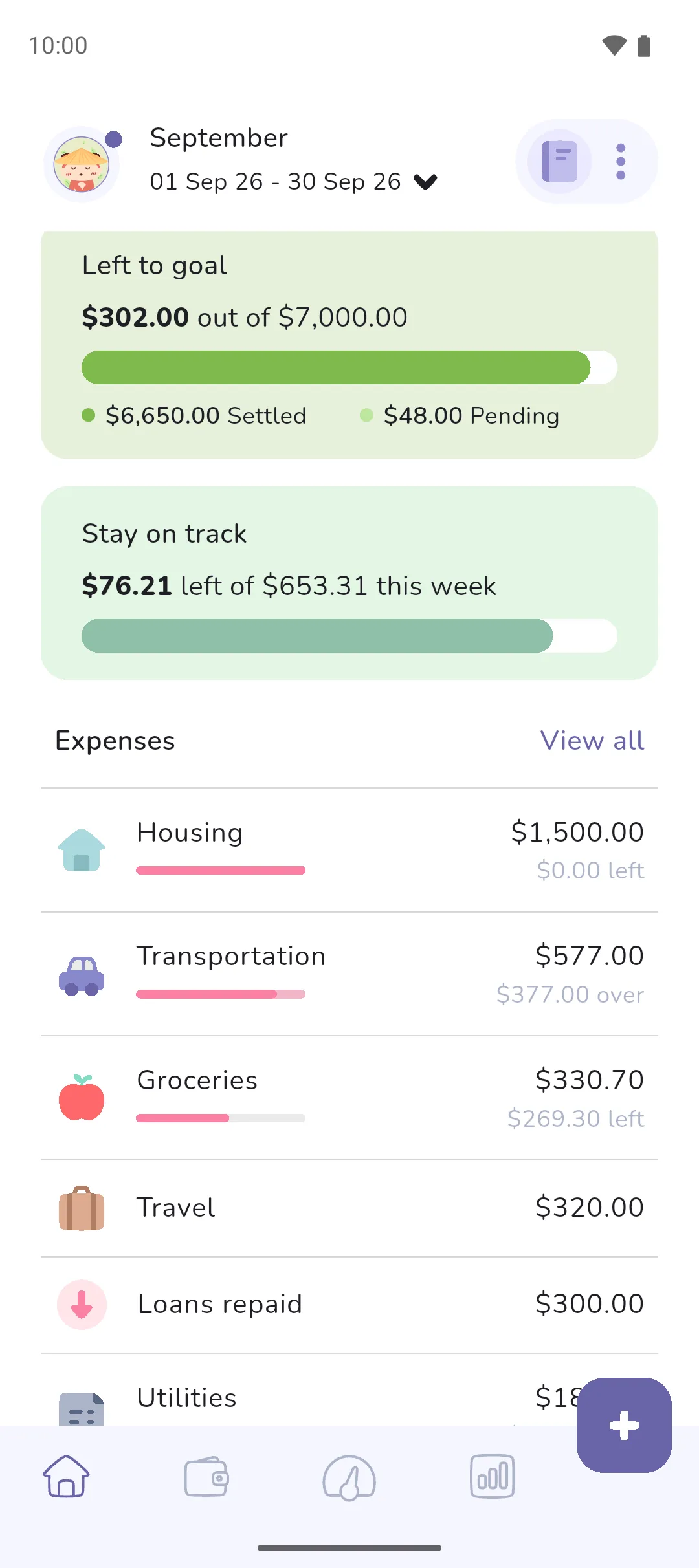
Top to bottom, for the period you're viewing:
- Cards for anything waiting:
- Pending transactions, in the current period while the book has a pending transaction, with a blue dot when there are transactions to settle. Tap it for the pending list.
- Your last period summary, once a period with a budget ends, and View summary while you're viewing a previous period: see End of period summary.
- With Pro Sync: a card asking you to review synced transactions or finish setting up linked accounts: see Reviewing transactions.
- The big purple total card: income minus expenses for the period, and minus your savings while the Savings card shows. Its title is Forecast or Cash flow, depending on the display mode you chose. Tap it for the period's transactions.
- The Income, Expenses and Savings cards beneath it, each with its total for the period. Savings shows once the book has a savings tracker: see Savings. Tap a card for its transactions.
- The Left to spend card: what's left of your overall budget. Its title changes to Over budget once you've spent past it. Tap it to edit the budget: see Budgets and goals.
- The Left to goal card: what's left of your overall goal. Its title changes to Goal Achieved once you reach it. The card shows once Left to goal is set to Time marker or No time marker under Customise home. Pro is required. Tap it to edit the goal.
- Stay on track, once you've picked a pace under Customise home. Pro is required.
- Expenses, then Income: each category with its total for the period. A category with a budget of its own shows a bar and what's left, or how far over. Tap a category for its transactions, or View all for every expense or every income.
- Savings: each savings tracker with what went in or came out of it in the period. Tap a tracker for its transactions, or View all for every tracker's.
The Left to spend card
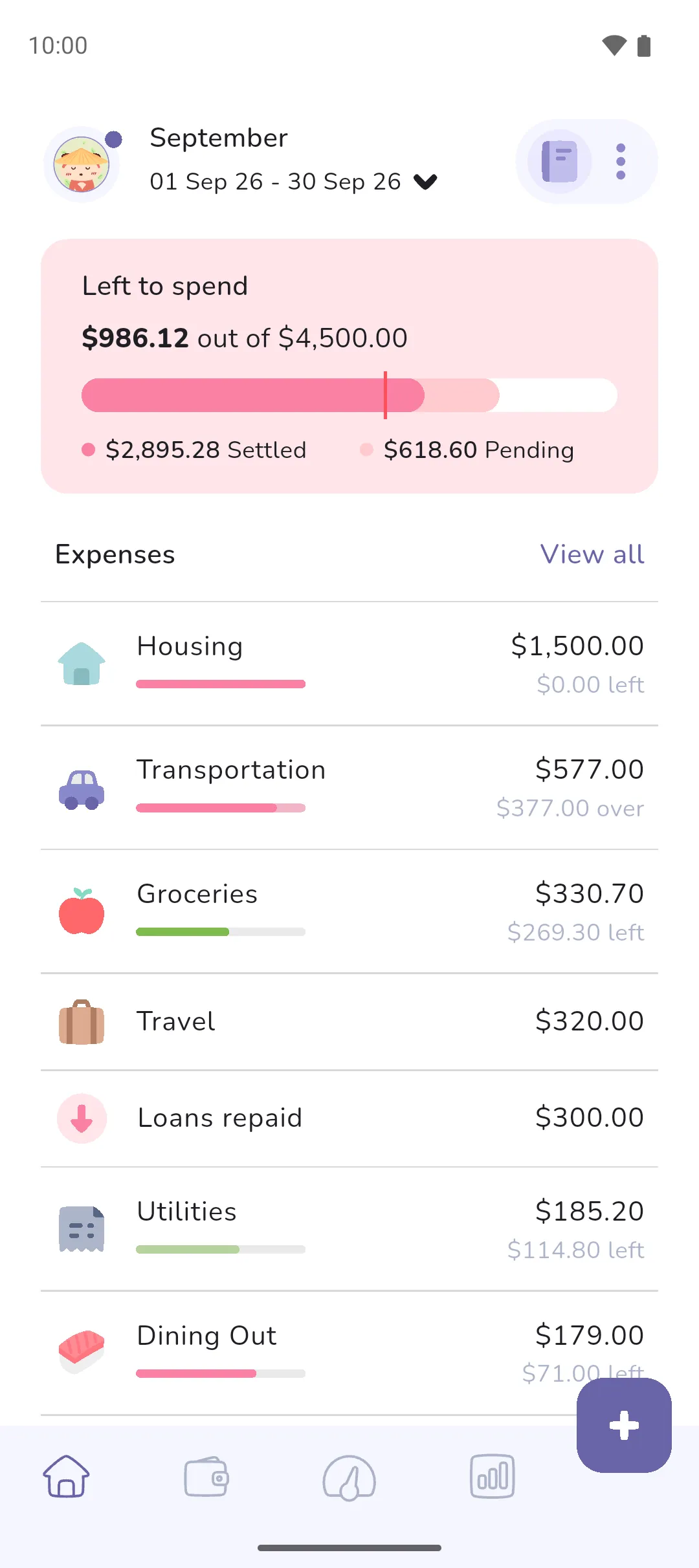
Left to spend is the overall budget minus every expense in the period, pending included. The bar fills in a darker colour for settled expenses and a lighter one for pending. Settled and Pending amounts show beneath while anything is pending. With Time marker, a line across the bar marks how far through the period today is, so expenses past the line are running ahead of the calendar. The card turns from green to pink once settled expenses pass 90% of the budget, get ahead of the time marker, or go over.
Stay on track
Pro is required for Stay on track. It breaks the overall budget into smaller weekly or daily chunks. Pick the pace under Customise home, below.
Each week gets a budget of its own: an even share of what the overall budget has left for the rest of the period. The card reads what's left of this week's budget, and turns pink once you've spent past it. Spend less than this week's budget and next week's rises. Spend more and it falls, so you still land inside the overall budget. A week that runs across two periods adds both periods' budgets together, and needs both set. Once expenses outside this week have used up the overall budget, the card says so. The card shows in the current period only. Daily works the same way, with a budget for each day.
Customise home
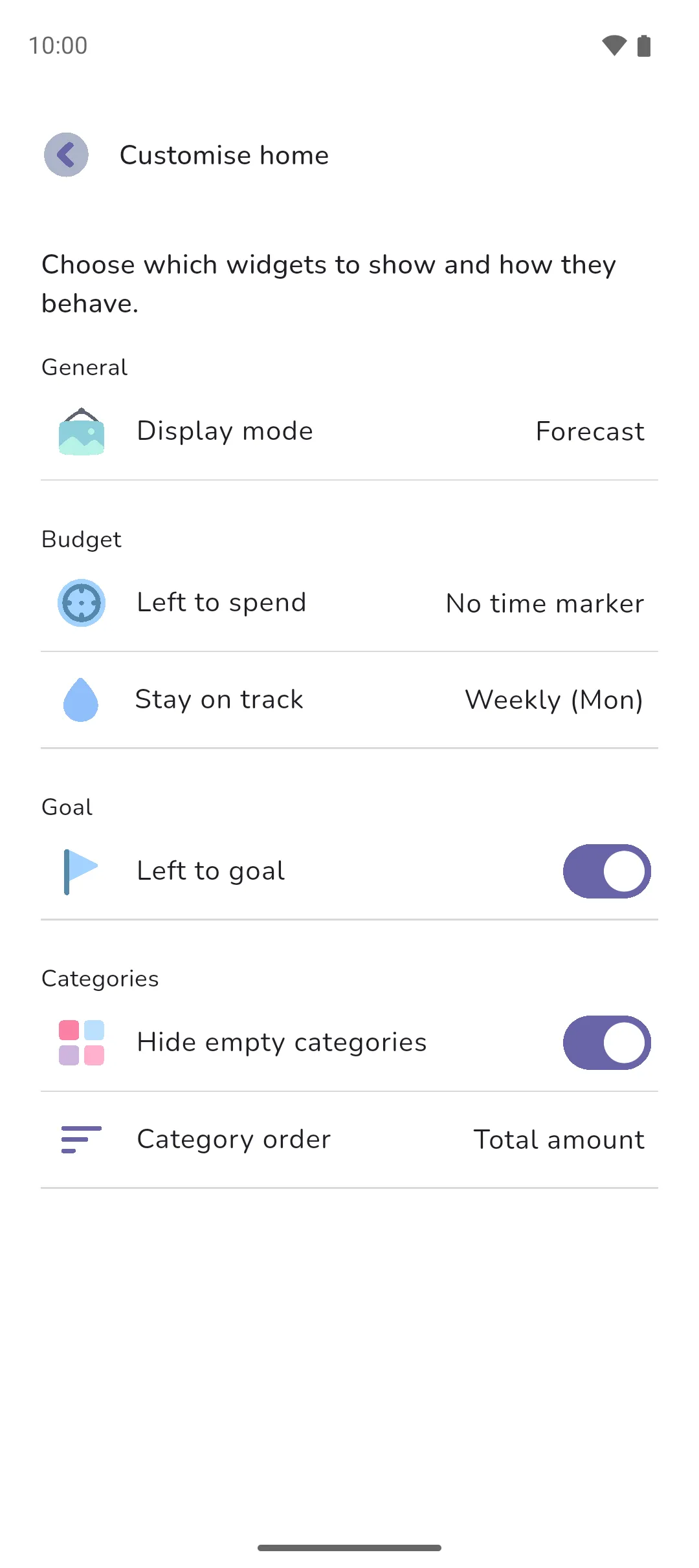
Settings → Customise home chooses which cards show and how they behave.
- Display mode: Forecast, the default, counts pending money in the big purple total card, the cards beneath it, and every category and tracker total. Cash flow counts settled money only.
- Left to spend: Time marker, No time marker or Hide.
- Stay on track: Hide, Daily, or Weekly (Mon), Weekly (Sat) or Weekly (Sun) by the day your week starts. Pro is required.
- Left to goal: Time marker, No time marker or Hide, the default. Pro is required.
- Show savings, Hide empty trackers and Tracker order, for the Savings card and list: see Savings.
- Hide empty categories, on by default.
- Category order: Total amount, largest first; Transaction date, the category with the most recent transaction first; or Alphabetical.
- A transfer between your accounts isn't an expense, so it stays off the home screen. A transfer into a savings tracker isn't an expense either: it counts under Savings, while Show savings is on. A transfer into a loan tracker counts as an expense under Loans repaid, and money borrowed as income under Borrowed funds.
- In Forecast, pending transactions with no category add up under a special Pending category. Tap it to list them as Pending expenses or Pending income. See Pending and settled.
- Hide income, under Settings → Privacy, hides the Income list and the Left to goal card, and shows Hidden on the big purple total card and the Income card.
- On the home screen, pull down to sync your data.
See also: Budgets and goals, Savings, Pending and settled, Categories, Trackers, Analytics, End of period summary.