
Connecting a bank links your real bank accounts to a Money Manager book, allowing transactions and balances to be synced automatically. This doc covers the link itself, setting up the accounts, and the first sync.
Where to find it: in three places.
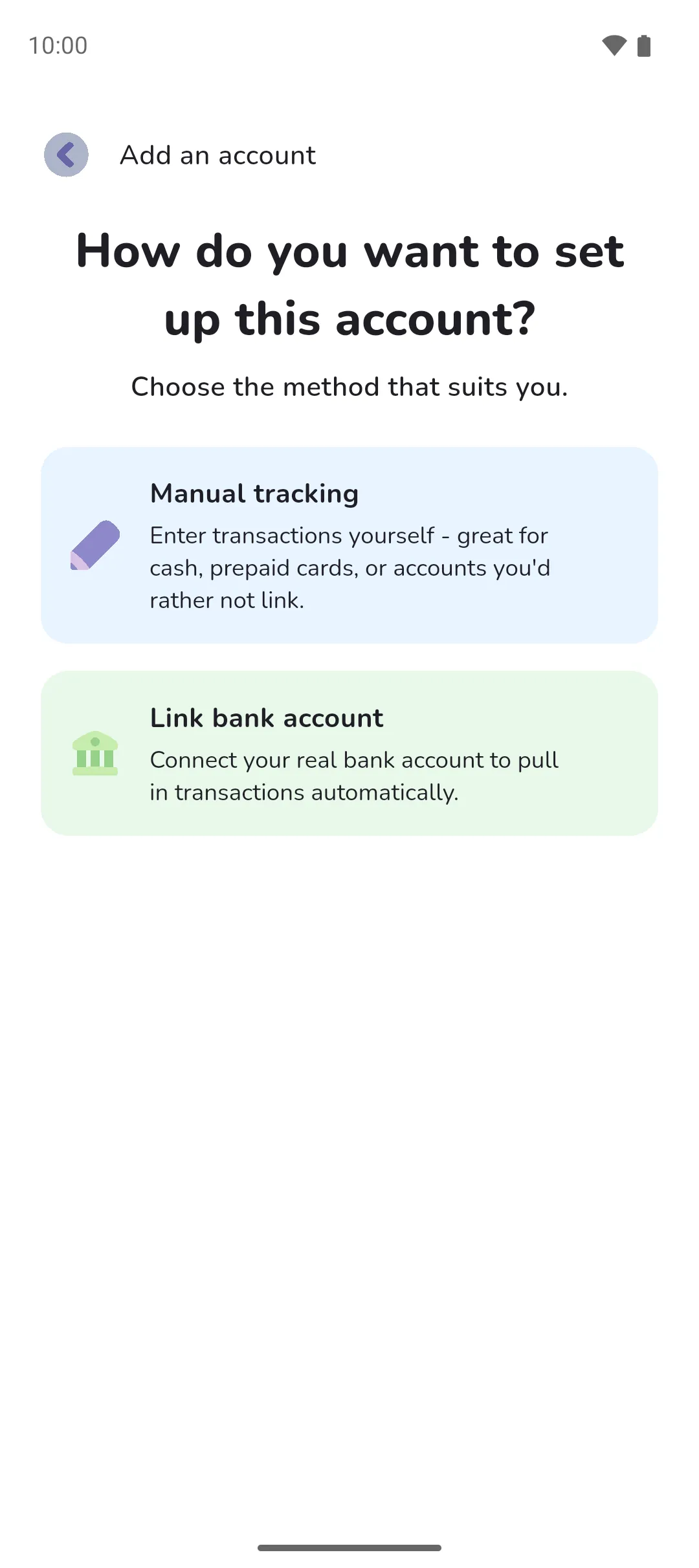
- To link an everyday or credit account, tap the Book icon (top right) → Manage accounts → Plus button → Link bank account.
- To link a savings or loan account as a tracker, tap the Book icon → Financial goals → Manage trackers → Plus button, pick Savings tracker or Loan tracker, then Link bank account.
- To add a bank connection, tap the Book icon → Manage bank connections → Plus button.
 Book icon (top right) → Manage accounts →
  Plus button → Link bank account.
Bank linking is available in Australia, the US and Canada. Anywhere else, Link bank account and Manage bank connections don't appear.
Connect a bank
Connecting a bank syncs in two steps. First, the bank accounts and their balances sync straight away, so you can set them up. Then each new linked account syncs up to five transactions from the last seven days. They can take a few minutes to arrive.
- Tap Link bank account, or the Plus button on Manage bank connections. A login and a PIN are required, so the first time, the app takes you through Set up a login and Secure this device before continuing. A Money Manager book is required too: without one, tap Create a Money Manager book.
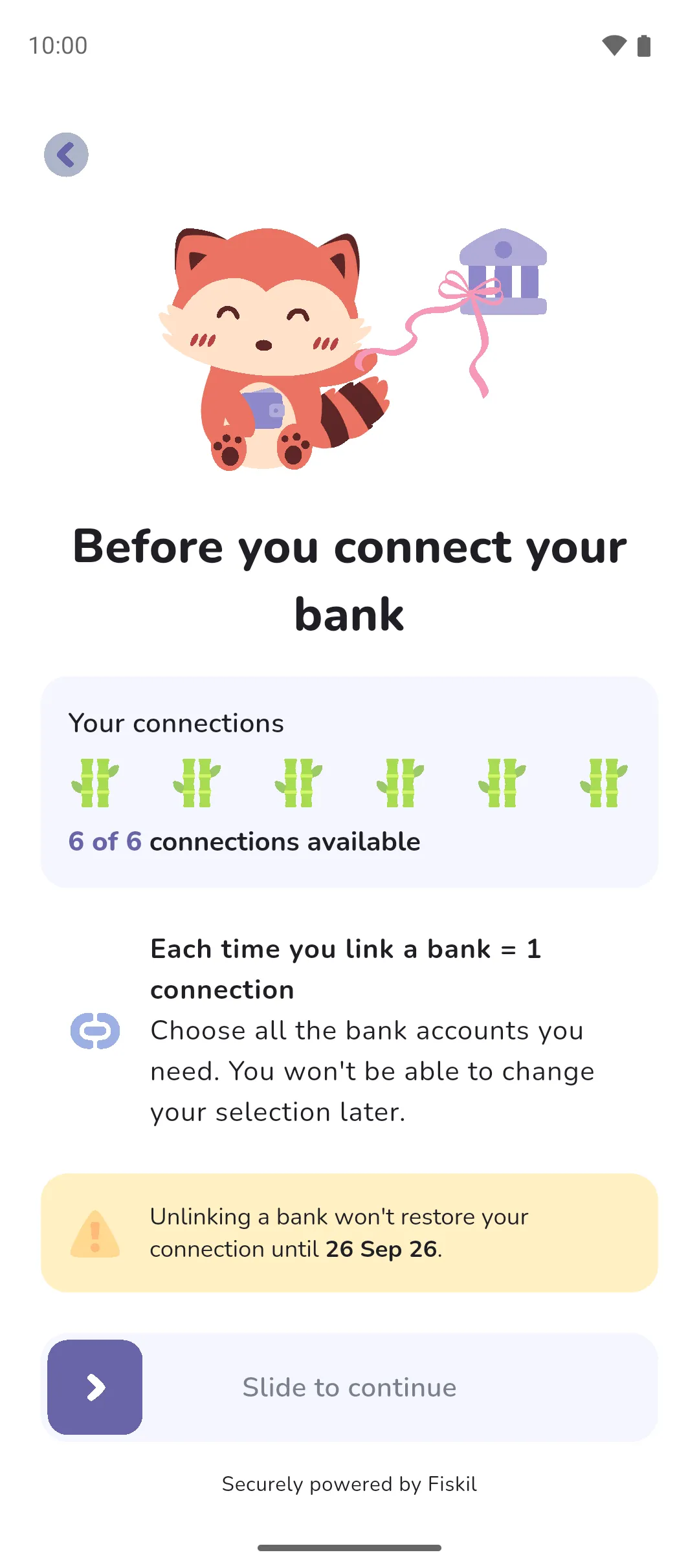
- Before you connect your bank opens. Each bank you link uses up one connection, even if you've linked that bank before.
- Drag Slide to continue across.
- Sign in at your bank and choose the bank accounts to link. The sign-in runs with Fiskil in Australia and with Plaid in the US and Canada, not in the app. In Australia, choose every bank account you'll want: the choice is final for that connection. In the US and Canada you can change it later: see Managing bank connections.
- Back in the app, the bank accounts sync, then the Set up new linked accounts screen opens.
Set up the linked accounts
Setting up turns each bank account you linked into a linked account: an account or tracker in the app that syncs its transactions and balance from the bank. Until a bank account is set up, its transactions don't show.
- Set up new linked accounts lists every bank account you linked that isn't set up yet. Tap one.
- On Set up linked account, the account is added to the active book by default. If you have more than one Money Manager book, tap Book to pick another. Pick the Type: Everyday account, Credit account, Savings tracker or Loan tracker. The app suggests one from what the bank reports.
- Give it a Name. The bank's own name for the account shows underneath.
- A credit account asks for its Limit, a savings tracker for its Goal, and a loan tracker for the Loan amount. The app fills in a guess from the bank's figures. Change it if it's wrong.
- Tap Save, and repeat for the others. Tap Save on the list once no account still reads Finish setup.
The first sync
Saving linked accounts for the first time opens the Your transactions are on their way screen. When your transactions arrive, we send a push notification that it's review time: see Reviewing transactions. If the app is open when they arrive, a card at the top of the home screen asks you to review them instead (unless another card has higher priority). The same card is in Notifications (your profile picture → Profile → Bell icon).
 Bell icon).
From then on, we sync your bank once a day, from the time you choose at the end of the first review.
- Your limit is two connections during the trial and six once you're paying full price. Unlinking a bank doesn't free its connection until the date shown on the Before you connect your bank screen.
- Linking a bank you've already linked uses up another connection. If every bank account you pick is already set up, the link ends at No new accounts to set up.
- A bank account you linked but haven't set up shows on the home screen as Finish setting up your linked accounts. Its transactions wait until it's set up.
- A linked account with no transactions in the seven days before the link doesn't sync any until the bank reports a new one.
- A linked Savings tracker or Credit account counts in the book's total balance from the start.
See also: Accounts, Trackers, Reviewing transactions, Managing bank connections, Linked accounts.