
A recurring transaction logs an income or expense for you on a schedule you set once: salary, rent, subscriptions. A recurring transfer does the same for money you move between your own accounts and trackers. Three terms are used throughout:
- Recurring transaction, or recurring transfer: the details and schedule the app logs from. It's what the Recurring transactions and Recurring transfers lists hold.
- Series: all the transactions logged from it, past and future.
- Occurrence: one transaction in the series.
Every occurrence appears in the book ahead of time, so you can see what's coming.
Where to find it: in two places.
- On the transaction itself: the Recurrence icon at the top of the Add transaction and Transfer screens sets up the repeat.
- The lists: everything you've set up is under the Book icon (top right) → Transactions → Recurring transactions or Recurring transfers.
 Recurrence icon at the top of the Add transaction and Transfer screens sets up the repeat.
 Book icon (top right) → Transactions → Recurring transactions or Recurring transfers.
Set up a recurring transaction
- Start a transaction or a transfer the usual way. Its date is the start date.
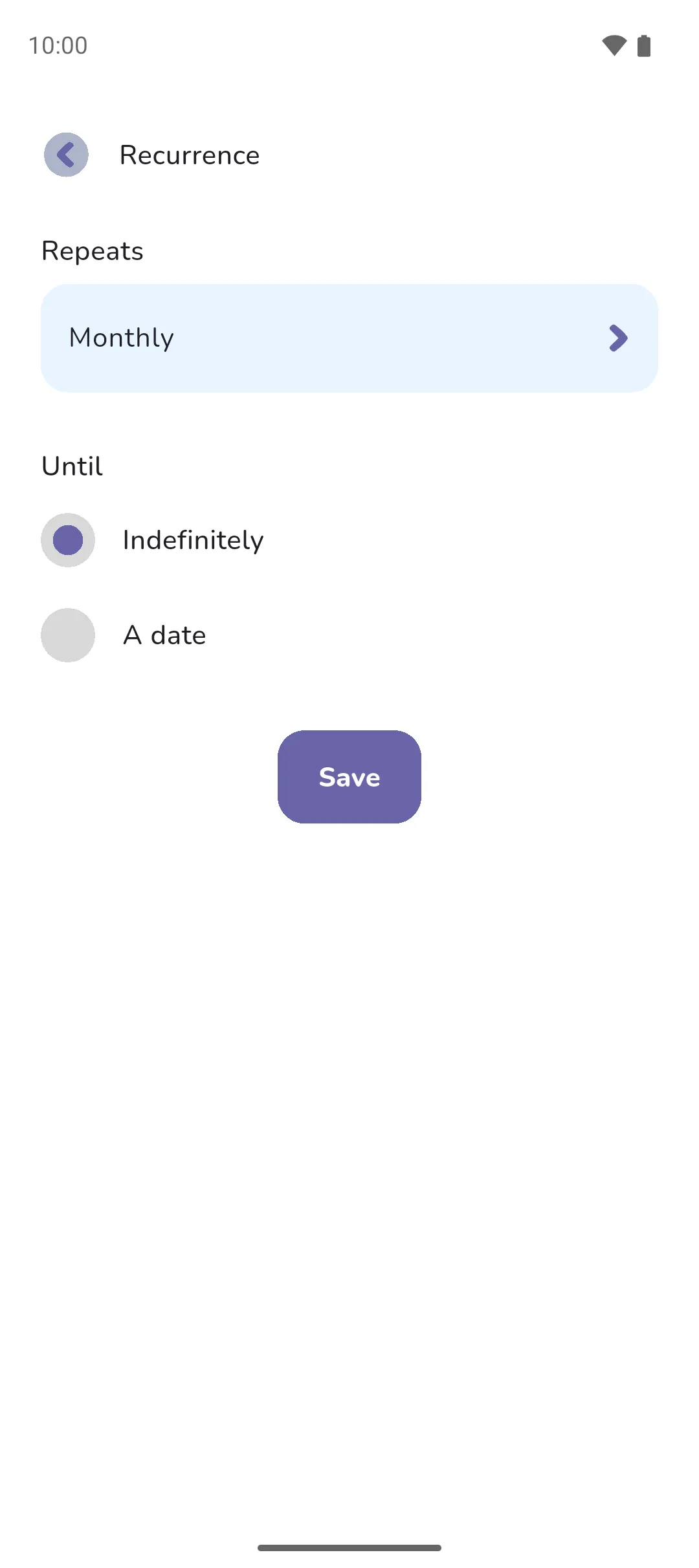
- Tap the Recurrence icon to open Recurrence.
- Tap Repeats and pick how often: Weekly, Fortnightly, Every three weeks, Every four weeks, Monthly, Every two months, Every three months, Every four months, Every six months or Yearly.
- For the weekly options, On lists the days of the week, with the weekday of your date ticked. Tick as many as you need and tap Save. The monthly options repeat on the day of the month of your date, and Yearly on that date each year.
- Under Until, leave Indefinitely, or choose A date and tap the date to set when it ends. The end date is inclusive. With Show transaction time on, you set an end time too, and an occurrence on that date counts only if it falls before it.
- Tap Save, then fill in the rest and save.
The status is Pending, settles automatically, or Pending if that's what you picked last time. Tap the Status icon to change it. Every occurrence takes the status you set here. See Pending and settled.
 Status icon to change it. Every occurrence takes the status you set here. See
 What the app creates
The app creates the occurrences ahead of time.
- How far ahead depends on how often it repeats: about a year for most options, two years for Every six months and Yearly, six months for a Weekly one on five or more days. The app keeps it that far ahead as time passes.
- An occurrence in the future is pending. When the start date is in the past, the occurrences before today are settled.
- In transaction lists an occurrence carries the Recurrence icon beside its name.
- Each occurrence is a transaction in its own right. Edit, settle or delete it on its own.
Find one you've set up
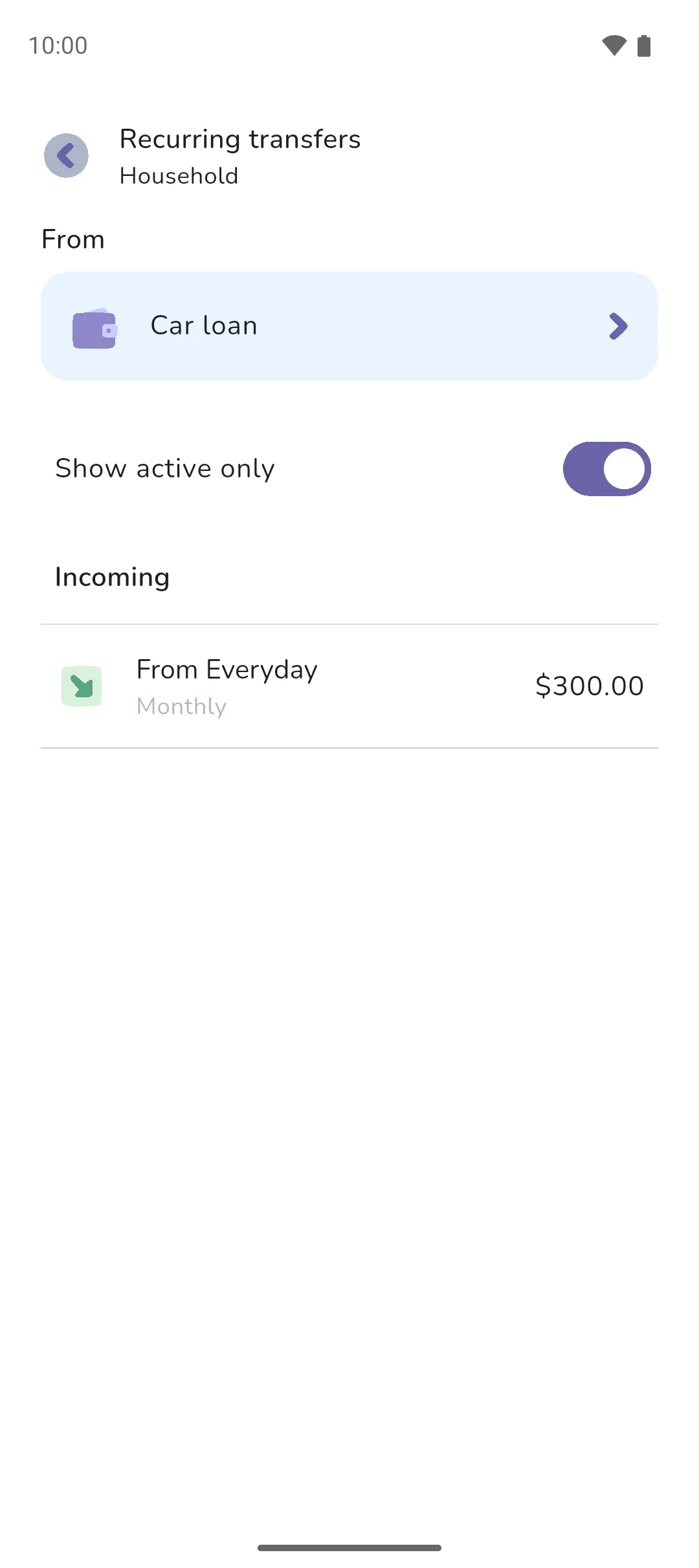
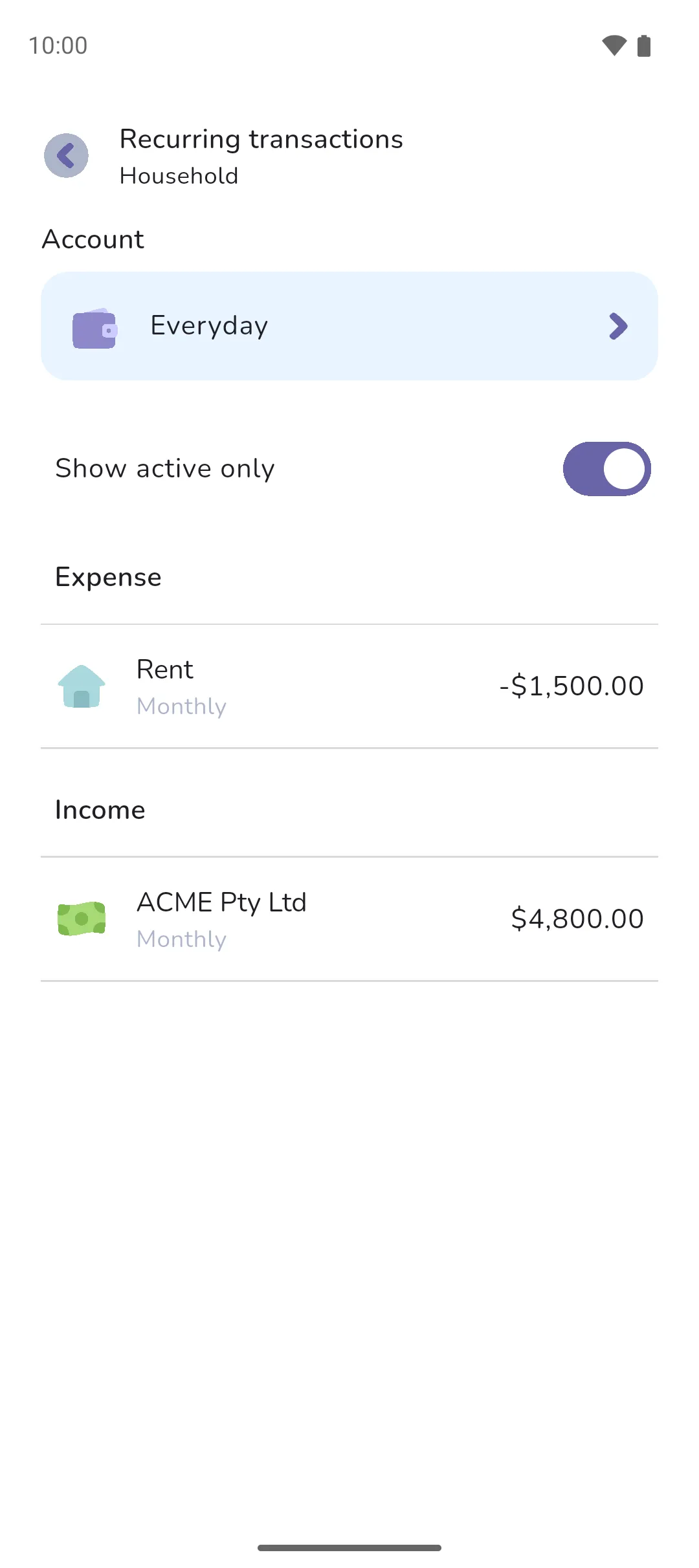
Open Recurring transactions or Recurring transfers from the Book icon (top right). In a Money Manager book, the Account at the top picks which account's recurring transactions you see. On Recurring transfers, From at the top picks an account or tracker, and its recurring transfers show under Incoming and Outgoing. Show active only hides the ones that have ended. Tap one to open it.
Edit one occurrence or many
You can edit from an occurrence, wherever you see it, or from the recurring transaction itself under Recurring transactions. Either way, change what you need and tap Save. Edit recurring transaction then asks how far the change reaches.
From an occurrence:
| Option | Occurrences that change | The recurring transaction |
|---|---|---|
| This only | This occurrence. | Unchanged. |
| This and following | This occurrence and every later one. | Takes the change, so occurrences it creates later follow. |
| All | Every occurrence, past and future. | Takes the change. |
| Pending transactions | Every pending occurrence. Settled ones keep their values. | Takes the change. |
| Settled transactions | Every settled occurrence. Pending ones stay as they are. | Unchanged. |
Changing the date or time applies to this occurrence only.
From the recurring transaction, you can change the amount, notes, the status from the Status icon, and the end date from the Recurrence icon → Until. A recurring transaction, though not a recurring transfer, also takes a new category, tags and reminder. A recurring transfer takes a new From or To instead. How often it repeats and its start date are locked once it's saved. To change either, end it and create a new one starting after it. On saving, choose All, so every occurrence takes the change, or Pending transactions, so only the unsettled ones do. A later end date creates extra occurrences. An earlier one deletes every occurrence after it, settled ones included.
Delete one occurrence or many
From an occurrence, tap the Delete icon. Delete recurring transaction, or Delete recurring transfer, asks how far it reaches:
 Delete icon. Delete recurring transaction, or Delete recurring transfer, asks how far it reaches:
| Option | Occurrences deleted | The recurring transaction |
|---|---|---|
| This only | This occurrence. | Unchanged. |
| This and following | This occurrence and every later one. | Ends just before this occurrence. When this is its first occurrence, it's deleted. |
| All | Every occurrence, past ones included. | Deleted. |
| Pending transactions | Every pending occurrence. | Ends at its last settled occurrence. When none has settled, it's deleted. |
From the recurring transaction under Recurring transactions, the Delete icon deletes it with its whole series, past occurrences included.
- A recurring transaction needs a category, even when it's pending.
- Recurring transfers exist only in a Money Manager book, since an Expense Tracker book has no transfers.
- To stop a recurring transaction and keep what's happened, set an end date, or delete any of its occurrences with Pending transactions. Deleting the recurring transaction itself takes the past occurrences with it.
- A reminder on a recurring transaction comes with every occurrence. Pro is required for reminders.
- With Show transaction time on, a start time within an hour of midnight is refused, because daylight savings can shift it onto another day.
Say rent is $1,500 on the 1st, Monthly, Indefinitely, and from June it rises to $1,600. Open June's rent, change the amount and choose This and following. June onward, and every month created from here on, take the new amount. Earlier months keep the old one.
See also: Adding a transaction, Transfers, Pending and settled, Trackers.