
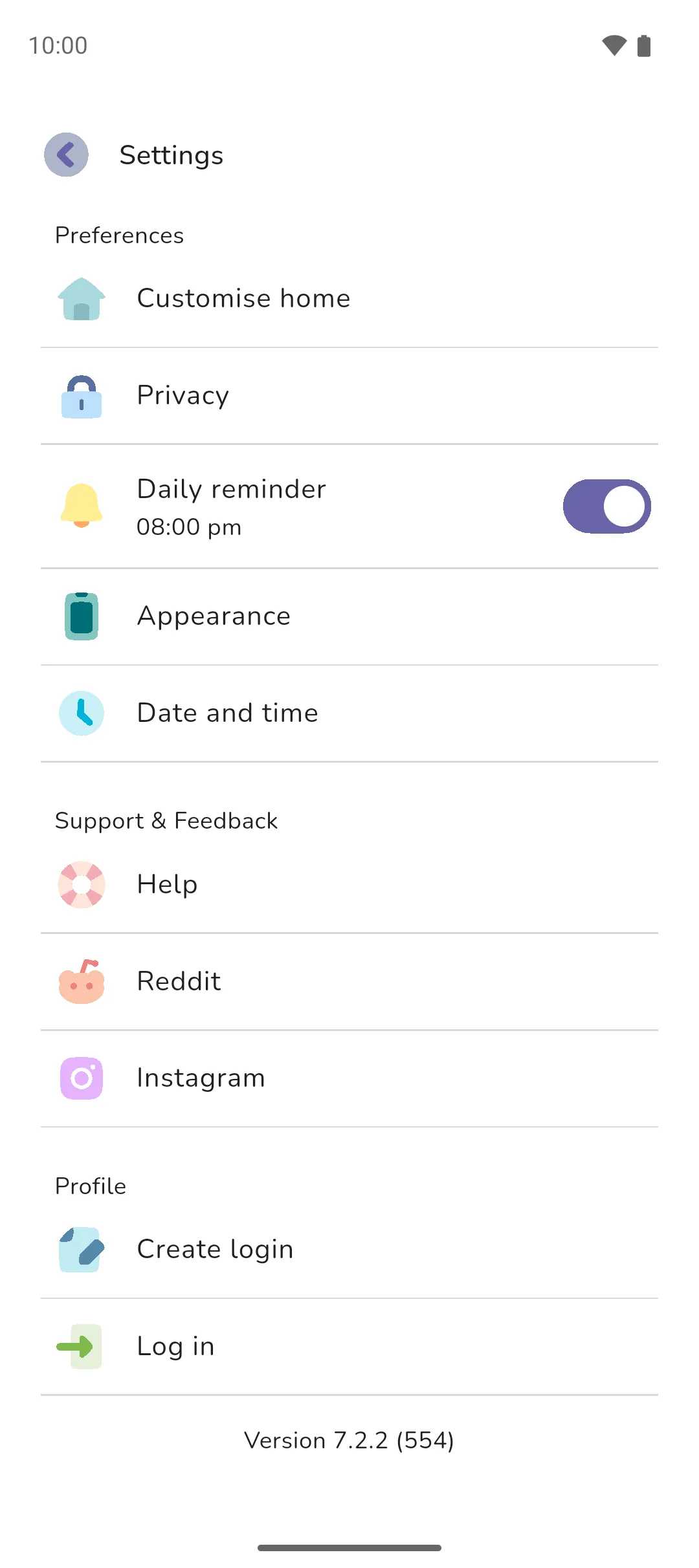
The Settings screen contains what applies to the whole app rather than one book: your login, how the app looks, notifications, and help.
Where to find it: your profile picture (top left of the Home tab) → Profile → Settings icon.
 Settings icon.
Login and syncing across phones
Without a login, your data is synced to the cloud but tied to the phone you entered it on. If that phone is lost, or the app is reset or uninstalled, the data can't be recovered. A login keeps your data reachable: sign in on any phone, including a new one, and your data is synced to it. The options are found under Profile on Settings.
- Create login adds a login to the data you have, so nothing is lost. Choose Continue with Google, Continue with Apple, or an Email and Password.
- Log in signs into a login you already have. Data you entered without a login is lost, so to keep it, create a login instead.
- Log out asks whether to keep your data on your phone. Log out only keeps it. Log out & delete data clears it from your phone but not from the cloud. The next time you log in, your data is synced to your phone again.
- Change password shows for an email login. Forgot password? on the Log in screen sends a reset email.
PIN and biometrics
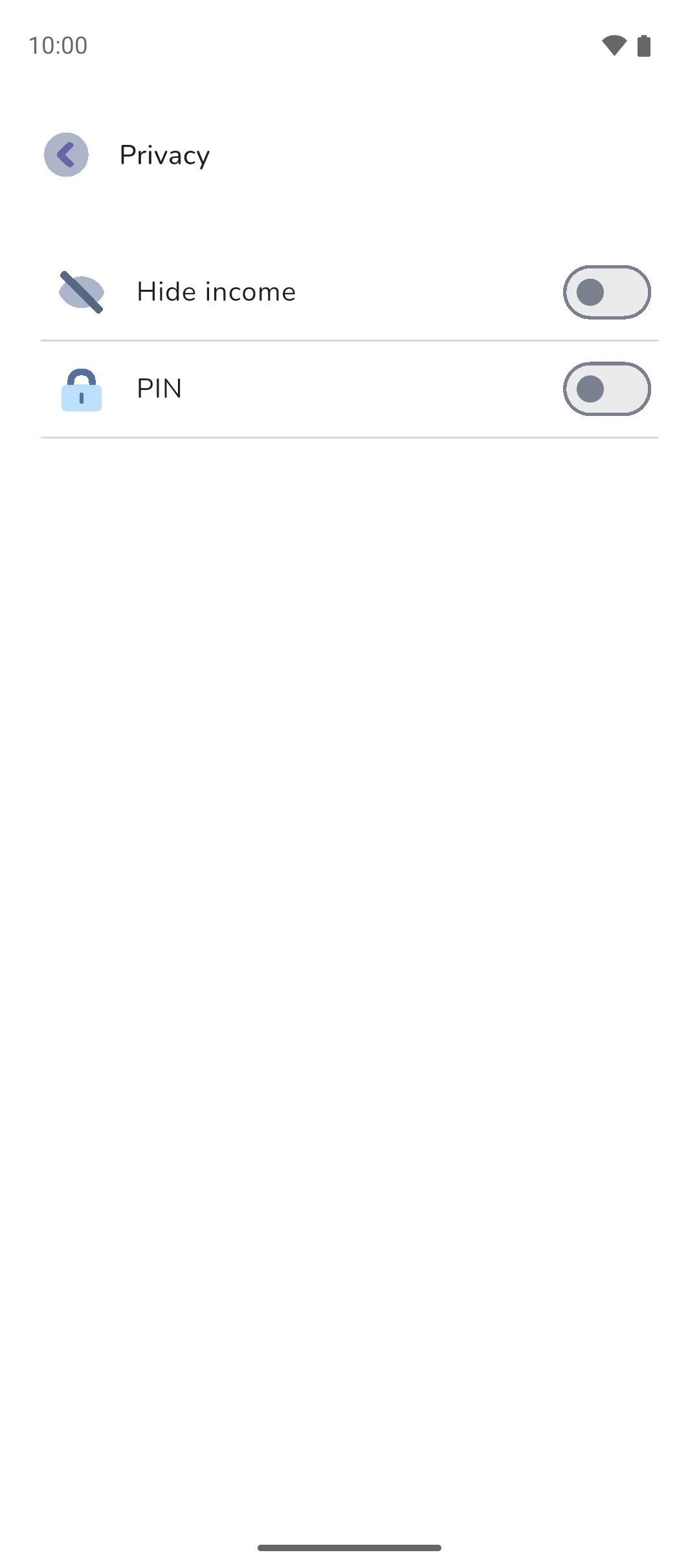
Under Settings → Privacy, the PIN toggle locks the app. Pro is required. Choose a 4-digit PIN and enter it again to confirm. From then on the app asks for the PIN each time it starts. Once a PIN is set, a Biometrics toggle appears on a phone with fingerprint or face unlock. With it on, the app asks for that first and falls back to the PIN. Turning PIN off asks for the PIN and turns Biometrics off too.
Hide income
Under Settings → Privacy, the Hide income toggle hides your income across the app. The home screen and analytics show Hidden in place of the figures. Recurring transactions leaves out its Income list, and Recurring transfers its Outgoing list. Your balances still include the income. See Home screen and Analytics for what is hidden on each.
Appearance
Settings → Appearance offers System Default, Light and Dark.
Date and time
Settings → Date and time has two toggles. Show transaction time adds a time beside the date on every transaction and transfer, and lets you set it. Use 24 hour format appears once Show transaction time is on.
Daily reminder
Daily reminder, found in Settings, is a push notification each day at the time you set. It's on by default, at 8:00pm. Tap the time to change it. With Pro Sync: the toggle reads Daily bank sync, and its time is when your bank transactions are synced: see Reviewing transactions.
In-app notifications
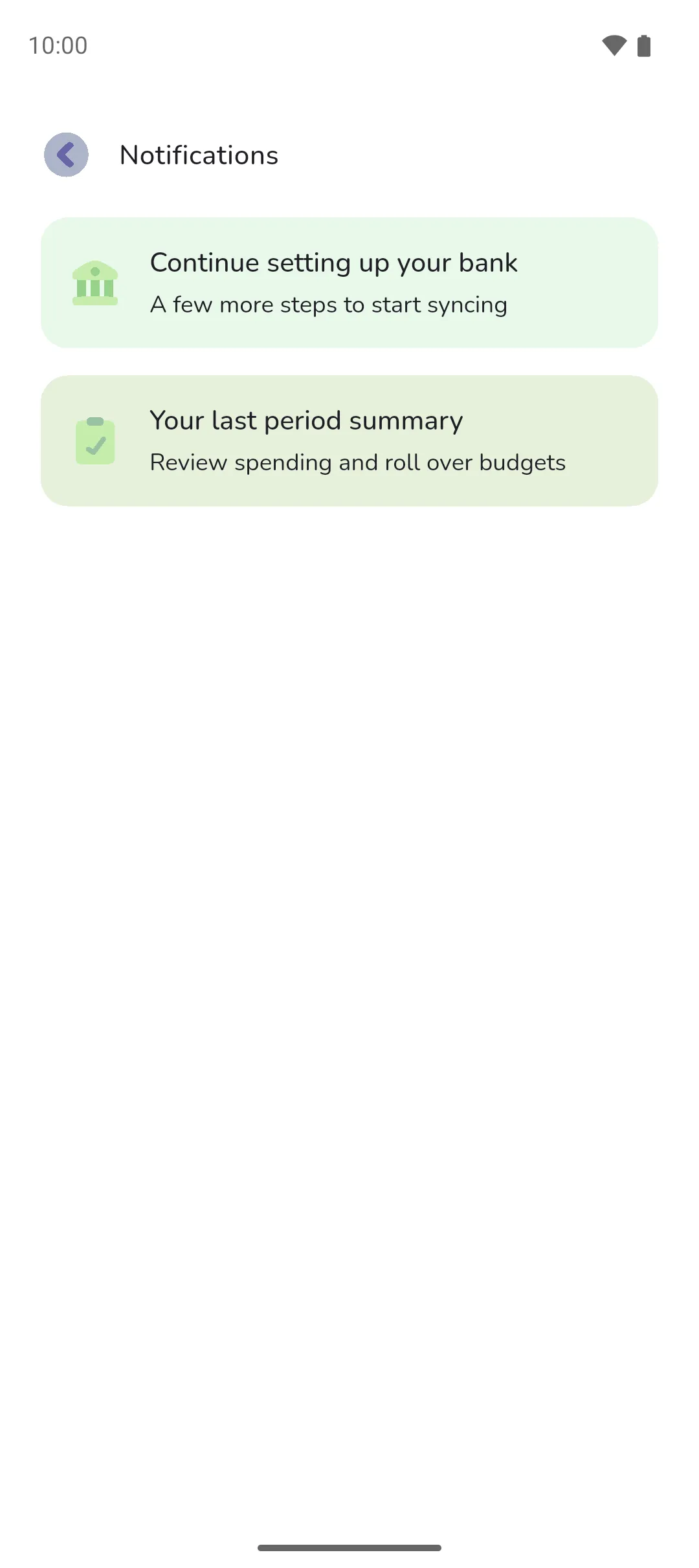
The Bell icon on Profile opens Notifications, a list of everything in the app you may want to know about: your previous period's summary, what's new after an update, and, with Pro Sync, transactions to review. In-app notifications that need your attention show as a card at the top of the home screen, so the list can be checked at your leisure: see Home screen. The bell shows a dot while there's a notification.
 Bell icon on Profile opens Notifications, a list of everything in the app you may want to know about: your previous period's summary, what's new after an update, and, with Pro Sync, transactions to review. In-app notifications that need your attention show as a card at the top of the home screen, so the list can be checked at your leisure: see
 Deleting your data
Settings → Help → Delete login and data deletes your login and all your data from the phone you're on and from the cloud. With an email login, the app asks for your password first. With a Google or Apple login, it asks you to sign in with that account again. Another phone with the same login keeps its local copy of your data until you clear the app's storage or uninstall the app there.
User guide
The Need help with the app? card at the top of Settings opens the user guide in your browser.
Contact us
Settings → Help → Contact us opens your email app with a message to hello@thebudgeting.app. Your app version and phone details are filled in below the line where you write. They help us give better support for your specific situation. If your phone has no email app, the app shows the address with a Copy email button. Reddit and Instagram, under Support & Feedback, open our community pages.
- Appearance, Date and time, Hide income and the PIN are saved on your phone, not with your login, so set them on each phone you use. The daily reminder time is saved with your login.
- On the Profile screen, pull down to sync your data.
- Log out & delete data clears only the phone you're on. Delete login and data deletes it from the cloud too, and can't be undone.
See also: Books, Home screen, Analytics, End of period summary, and Reviewing transactions for the daily bank sync with Pro Sync.